How to allocate a Supplier invoice to a payment that is in the previous financial year
Overview
If you have Payment records that are dated in a previous Financial Year, then you will not be able to edit and update them directly– even if you are not changing the amount of the payment.
This means that you will not be able to edit payment and change any of the Supplier invoice allocations directly.
However, there is an alternate method of changing invoice allocations without having to edit the payment record or removing the Journal lock date. This can be done regardless of the age of the payment record.
Process
- Navigate to Accounts Payable and select Payment.
- Search for the payment you are looking to modify by entering the payment details and selecting Fetch.
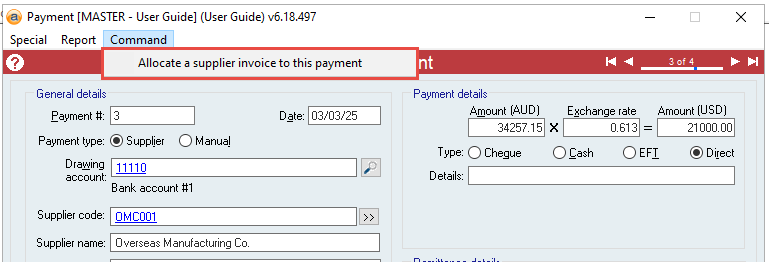
- Navigate to Command and select Allocate a supplier invoice to this payment.
- Enter the supplier Invoice # into the Accentis invoice field, and the amount allocated into the Amount allocated field. The Payment field should be pre-filled.
If you want to allocate the full amount of the Payment, you can leave the Amount allocated field empty. If you want to remove a current allocation, you can input “0” in the Amount allocated field.
Additional Notes
This command can be run multiple times for the same Payment. For example, if you have allocated an amount that is too small, you can:
- Calculate the remaining amount required and allocate this amount.
- E.g., if the first allocation was $150, and the required allocation is $200, allocate $50.
OR
- Remove the current allocation and then allocate the correct amount as above.
- E.g., first run the command with an Amount allocated of $0, and then run it again with the correct allocation amount.
Did you find this article helpful?
If this article is missing information, ambiguous, or didn’t give you clear instructions, let us know and we will make it better! Please email us and quote the KB# in the top right of this article to let us know why it didn’t help you out and we will point you in the direction of additional information.
Last edit 28/07/25