All about Job Costing
Contents
Work in Progress and flush override setup
Overview
The Job Costing module allows you to accurately track all income and costs associated with a specific job or project and then assess the resulting profit / loss. While you can normally examine the income and costs associated with a single sales invoice, Job costing allows you to analyse the result of a combination of multiple related costs and income over a period of time.
This document focuses on how you can leverage job-related features specifically for job costing, enabling you to:
- Track and analyse all expenses incurred in the completion of a job.
- Link Job references so that you have a handy means to view all related documentation, even if you don’t need to perform Job costing analysis.
- Control how job costs are posted to the general ledger, allowing them to be deferred to a Work in Progress account instead of being immediately reflected in the Profit & Loss statement.
- Redirect job-related expenses to a designated expense account that aligns with the nature of the job.
Job Costing
What is Job Costing?
In Accentis Enterprise, Job Costing refers to the process of using Jobs to manage, collect, and allocate costs associated with completing a specific task or project. This approach allows businesses to track expenses more accurately and ensure that all incurred costs are properly accounted for.
Every action you can perform within Accentis Enterprise that can cause an expense in relation to a job is captured. These actions will come from across your system including timesheets (for labour), purchases, consumption of inventory, subcontractor expenses, or even manual journal entries.
Job Costs and Job Costing actions
Every action within Accentis Enterprise that causes a financial cost to be incurred (e.g. buying goods from a supplier or consuming your own inventory) can be linked to a Job. If an action that results in a financial cost is linked to a Job, then it is considered a Job Cost.
It is important to note that to be considered a Job Cost, an action must be linked to a Job and result in a financial cost being posted to your General Ledger.
Which actions are Job Costing actions?
If the Job Costing action is a transaction, then it may also be referred to as a Job Costing transaction.
Dispatch and Dispatch return
When you deliver goods to a customer from a sales order, you are removing inventory and transferring that cost to your Cost of Sales. That’s a cost to the business.
Any Dispatch line that is linked to a Job is considered a Job Cost.
Point of Sale or Direct Invoice of inventory
If you sell an item using the POS Invoice function or enter an inventory code directly into a Sales Invoice (an item that was not dispatched and only entered at the invoice stage), then you have removed the items from inventory and therefore incurred a cost.
Any line on a sales invoice or POS invoice that is linked to a Job and does not originate from a Dispatch is considered a Job Cost.
Receive or Receive return of non-stock items
If Receive lines from a Purchase order are for non-stock items, then the cost of those goods is an expense to the business as soon as the Receive is updated. This is because non-stock items do not get stored in inventory.
Any line on a Receive that is linked to a Job and is for a non-stock inventory code is considered a Job Cost.
Receiving or returning stock items with a Receive direct to job flag
If you create a Purchase Order and use the special purpose flag Receive direct to job, then the goods are not put into stock as they are considered to be consumed immediately.
Any line on a Receive that is linked to a Job and flagged Receive direct to job is considered a Job Cost.
Supplier invoice of manually entered lines
When a supplier invoice is created, any item entered directly onto the invoice (i.e. the line did not auto populate from a Receive record) can only be a non-stock item. This becomes an expense to the business as soon as the invoice is updated.
Any line on a Supplier Invoice that is linked to a Job and manually entered is considered a Job Cost.
Stock assignment
The Stock assignment function in Accentis Enterprise is designed to remove inventory and write-off the cost to the Cost of Sales section on the general ledger. Stock assignments are therefore a direct consumption of inventory.
Any Stock assignment that is linked to a Job is considered a Job Cost.
Stock adjustment
The Stock adjustment function in Accentis Enterprise is designed to adjust the stock of a single item code in (a negative cost value) or out (a positive cost value). Stock adjustments are therefore a direct consumption of inventory (regardless of whether it is a positive or negative value).
Any Stock adjustment that is linked to a Job is considered a Job Cost.
Timesheets
Timesheet entries in Accentis Enterprise must always be linked Job or Work order. Therefore, the cost of labour for each entry must also be linked to a Job or Work order.
Any Timesheet entry that is linked to a Job is considered a Job Cost.
Manual journal entry
Manual journal entries in Accentis Enterprise can have Job assigned to any of the lines.
Any line of a Manual journal entry that is linked to a Job is considered a Job Cost.
It is important to note, especially when transferring costs between Jobs, the debit value of the Manual journal line is the cost that will be used (regardless of whether it is a positive or negative value).
Repair parts
When the status of a Repair record is set to Repaired or Not repairable. The items listed in Parts used are consumed from inventory.
The cost of any parts used on a Repair that is linked to a job is considered a Job Cost.
Which actions are not Job Costing actions?
There are many actions in Accentis Enterprise that might appear to incur costs but don’t produce financial transactions. These actions are not considered Job Costing actions.
Any line of any record that is not linked to a Job
Most records within Accentis Enterprise that consist of multiple lines will allow you to assign a different Job to each line. All transactions except for Stock assignments also allow you to not assign any Job. Any line that is not linked to a Job is not considered a Job Cost.
Purchase orders, Sales Quotes, and Sales orders
These records all allow you to link Jobs but do not generate any financial transactions on their own. As a result, they are not considered Job Costing actions.
Receive of stock items
When you receive items with the type: Stock, you still own those goods, and they have a value on your balance sheet. The goods have not yet been consumed and are therefore not considered Job Costs.
Supplier invoice for Received goods
Any supplier invoice that relates to a Received line from a purchase order is not considered to be a Job Cost. This is because the Receive transaction is where the cost is incurred, not when the bill is entered.
It is important to note that any line on a supplier invoice that is entered directly on the invoice (i.e. not from a Receive line) will still be a job cost.
Work orders
A Work order consumes items of inventory to create new items of inventory. There is no overall loss in value, and therefore it is not considered a Job Cost.
It is important to note that if the items that were produced by a Work order are then consumed, that is considered a Job Cost.
How to allocate costs or income to a Job
Now that we know which transactions support Job allocations, then allocating them is easy. All forms have a Job Code field, and many of them also support allocating a Job Code per line.
If a form supports allocating Jobs per line and you enter a Job Code for the entire form, you will be prompted to confirm if you want to link the Job to each line. Otherwise, you can navigate to the Line Details button below the Item Code and enter the Job Codes for each line manually.
How do I do an initial load of Job sales values?
Because sales values are only taken from Sales invoices, to load the initial Job sales values (i.e. manually allocate sales data for a newly created Job) you will need to create a Sales invoice with two lines. One line will be linked to a Job and be for the value you are allocating, the other line will not be linked to a Job and will be for the negative value.
Both values will be posted to an income account and net to $0.00, but since only the positive line is associated with the Job, the Job sales value will increase.
Work in Progress (WIP)
What is Work in Progress?
When buying or using materials or services for a Job, those costs typically post immediately to expense or cost accounts in your general ledger.
For jobs that run for an extended period of time you might not invoice that job until it has been finished. Therefore, you may not want the costs to be shown on your P&L each month until you have an equivalent income posting to offset the costs.
Similarly, you may also not want to progress claims or partial invoices to post to your income account while the Job is in progress as this could inflate your income reports prior to realising any costs.
Accentis Enterprise allows you to accumulate Job expenses and income into a Work in Progress General Ledger account until the Job has been finished.
The effect of this is that for Jobs where you make purchases and expend inventory over a long period, you can ensure that all those costs are entered into the P&L all at the same time (usually when the Job is invoiced). This can help smooth out peaks and troughs in your Gross Profit that are caused by Jobs that are still in progress.
Once the Job is finished (or substantially finished), the accumulated costs and income are then able to be flushed out of the Work in Progress account and into the P&L.
Work in Progress for costs and expenses
The Work in Progress for costs and expenses is the total combined cost value of everything you have bought for projects that are not yet completed (e.g. things that are currently in the middle of being built, assembled, or commissioned).
For example:
Say you’re working on a six-month project to build a pump station. In the first month, you hire a concreter to lay the slab, and you receive an invoice for that work.
However, you typically don’t want that invoice to be recorded as a cost of sale for that month.
Why? Because the slab is just one part of a larger project that’s still in progress and not something you can bill separately. Instead, it contributes to the total cost of the entire project, which will only be invoiced once the project is complete.
Work in Progress for sales and income
The Work in Progress for sales and income is the total sale value (not including GST) that has been raised through invoices for projects that are still in progress.
Using the pump station project example again:
Say you have progress claims that you are making throughout the job, but they don’t directly correspond to the costs that you have incurred to date. If you were to invoice 20% of the project at the beginning, before you have incurred any costs, this could inflate your income reports prior to realising any costs.
Why is it important to allocate costs and income to a Job?
The benefit of using a Job is that it allows Accentis to identify what tasks are and aren’t currently in progress. Jobs are the mechanism within Accentis Enterprise that forces your costs and income to be redirected into a Work in Progress account instead of posting directly to your P&L.
This means that every cost or sale you incur for a Job or project (where you want to defer those values to a WIP account) must be linked to a Job code. If a transaction isn’t linked to a Job code, then they will post directly to the P&L G/L account as at the date of the transaction (instead of at the Flush Date).
How are transactions affected by WIP?
Values are posted to a WIP account any time you perform a Job Costing action for a Job that has a Work in Progress and is not already flushed.
If the transaction represents a cost:
- The G/L account that would normally be posted to for the Debit side of the transaction will be saved away for later.
- The transaction will post its Debit value to the Job’s Work in Progress account.
If the transaction is a Sales Invoice (this is the only transaction that can be posted to a WIP account that represents Job income):
- The G/L account that would normally be posted to for the Credit side of the transaction will be saved away for later.
- The transaction will post its Credit value to the Job’s Work in Progress account.
When the Job is flushed, the values will be posted to the G/L accounts that were saved (or flush override account).
Flushing
What is Flushing?
If Work in Progress is like a bucket for a Job, then Flushing the Job is just like cutting the bottom out of the bucket.
Once the Job is finished (or substantially finished), you will need to recover the accumulated costs and income back out of your WIP account. This is called flushing.
The act of flushing a Job creates a new transaction called a flush transaction for every cost or income transaction that was posted to the WIP account while the Job was in progress.
When you flush a Job, all the costs and income that have accumulated in a WIP account while the Job was in an un-finished state (i.e. not flushed) will be posted at the same time to their usual account in the P&L. This occurs on the Flush Date.
There can only be one Flush Date for a Job, and once a Job is flushed, it no longer accumulates any costs or income in its WIP account. All subsequent costs or income posted for the Job will now post immediately to the P&L.
A Job can be un-flushed, which will put all the flushed transactions back into the WIP account and delete the original flush transactions.
How are transactions affected by Flushing?
When a Job is flushed, a new transaction is created for every cost or income transaction that was posted to the WIP account. These transactions are called flush transactions.
A flush transaction can be seen in the transaction listing, and each flush transaction will correspond with exactly one cost or income WIP transaction.
If the flush transaction represents a cost:
- The WIP account will be credited.
- The original G/L account will be debited (or flush override account).
If the flush transaction represents an income:
- The WIP account will be debited.
- The original G/L account will be credited (or flush override account).
The benefit of this mechanism is that only new transactions are created, and the original transactions are never touched. This allows you to trace the original posting and the flushing separately.
You can view Job flush transactions by running the Journal transaction report SA1628 and filtering the transaction type to Job Flush.
How to flush a Job
Flushing a single Job
- Navigate to the Job costing > Jobs and fetch the Job you are intending to modify.
- Select Edit and tick the Job flushed box.
- Enter the Date flushed
- Select Update.
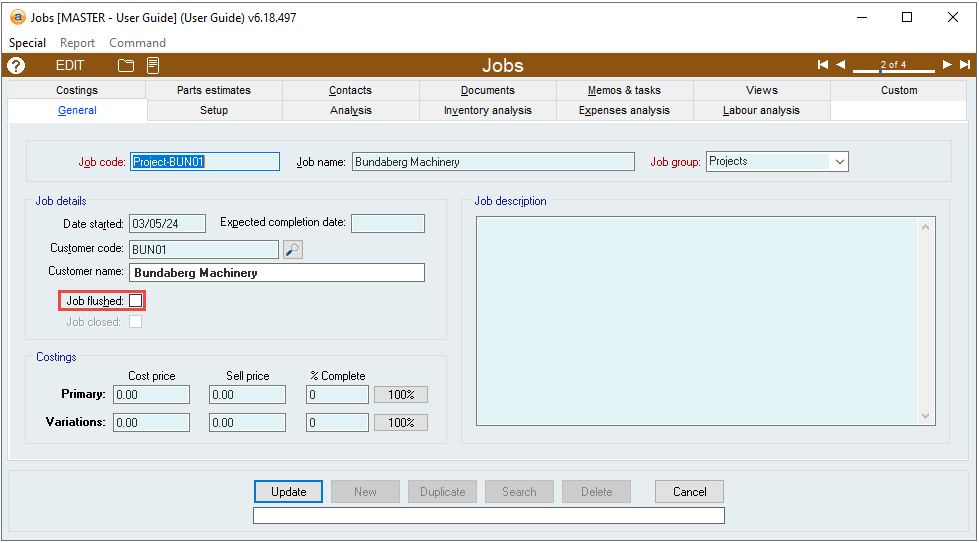
Once you update the Job, the flushing transaction process will begin. If the Job has many transactions, this process may take a while.
Flushing multiple Jobs
- Navigate to any Job listing. (e.g. Job Costing > Report > QUICKLIST Job List or Job Costing > Report > Scheduling > Master Schedule)
- Hold Shift and Select any Jobs you wish to flush.
- Navigate to Action and select Flush selected jobs.
- Enter the Job flush date and click OK
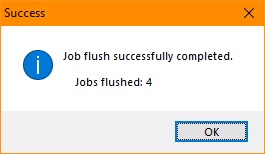
- A message will pop up showing the number of jobs successfully flushed
Flush override accounts
Typically, when you flush a Job, all the accumulated costs and income that were posted to the WIP account are re-transacted back onto the P&L. When this happens, G/L account that would have been used for the original transaction is also used for the flush transaction. This is not always the case.
Accentis Enterprise allows you to configure Jobs so that all of the costs are moved to a single account instead of redirecting the original G/L accounts. This allows you to create a single Job Costs COGS account, and no matter what type of expense is being flushed, they all end up in the same account for easier tracking and reporting.
The same mechanism exists for invoices as well. You can specify an invoice flush account to ensure that all sales for the Job are posted to a special sales income account instead of the G/L accounts to which the invoice would normally post based on the items on the invoice.
You can set the flush override accounts per Job so that only specific Jobs will be redirected, or you can set default accounts so that all new Jobs of a certain group will be redirected.
- Only use flush override accounts when you are certain about the way they work, and the effect they have on your P&L.
- You do not have to have flush override accounts.
Here’s an example of why you might use a flush override account:
Say you have an item code, STEEL, that you use to buy and sell steel to customers. The cost of sales account for this item might be “Cost of Sales – Steel sales”. If you then use some of that steel inventory to complete a construction Job and write off $5000 of steel using a Stock Assignment, the cost of that inventory would still end up in “Cost of Sales – Steel sales”. That’s not really correct and has the potential to substantially skew your COGS account.
Now, say, you use a flush override account for the construction job. You can ensure that costs for the job are flushed to a separate account and aren’t skewing the account you use for steel sales.
How are Manual journal entries affected by Flush override accounts?
If a Manual journal entry line is linked to a Job with a Flush cost account, the account in the Debit A/C column is the account that will be adjusted for the amount. That means that if you need the Credit A/C account adjusted you will need to reverse the transaction.
In the example below, you would switch the Debit A/C and Credit A/C accounts and remove the negative from the value.
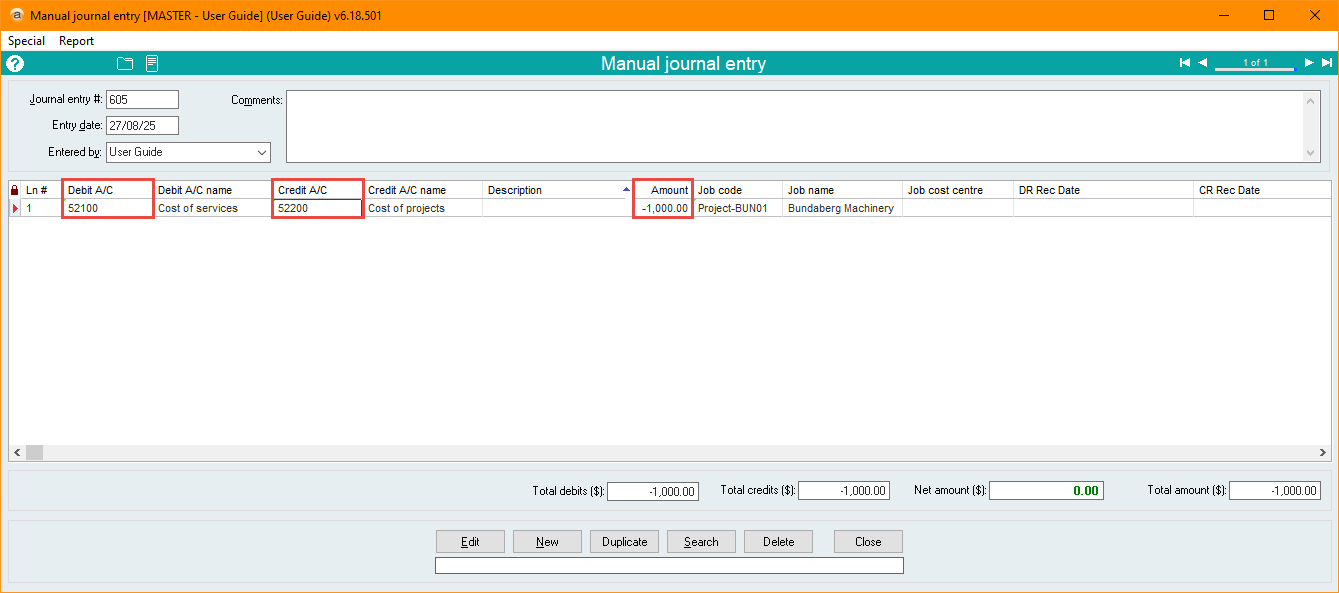
Jobs and Manual journal entries interact this way because when analysing the costs (e.g. through SA2390 - Detailed costing analysis) only one side of the transaction can be represented. If both the Debit A/C and Credit A/C accounts were reflected, there would be no effect as they net to 0.00.
Work in Progress and flush override setup
Work in Progress
You can decide which accounts to use for your Work in Progress for both costs and invoice. When we set up your database, we will already have created at least one Job WIP account, but you can create your own, for example:
- You may decide to use the same account for income WIP as well as costs WIP. The value of the account will go up when costs are incurred and go down when invoices are processed.
- You can decide to have only a costs WIP account, or only an invoice WIP account.
- You can have a separate account for costs WIP vs invoice WIP.
You can also set a default WIP account for all new Jobs that belong to a certain Job group so that you don’t have to remember to set them each time you create a Job.
Setting up a Job to make costs post to a WIP account
- Navigate to Job costing > Jobs and fetch the Job you are intending to modify.
- Select Edit and navigate to the Setup tab.
- Enter an account code in the Work in progress account details field.
- Select Update to save your changes.
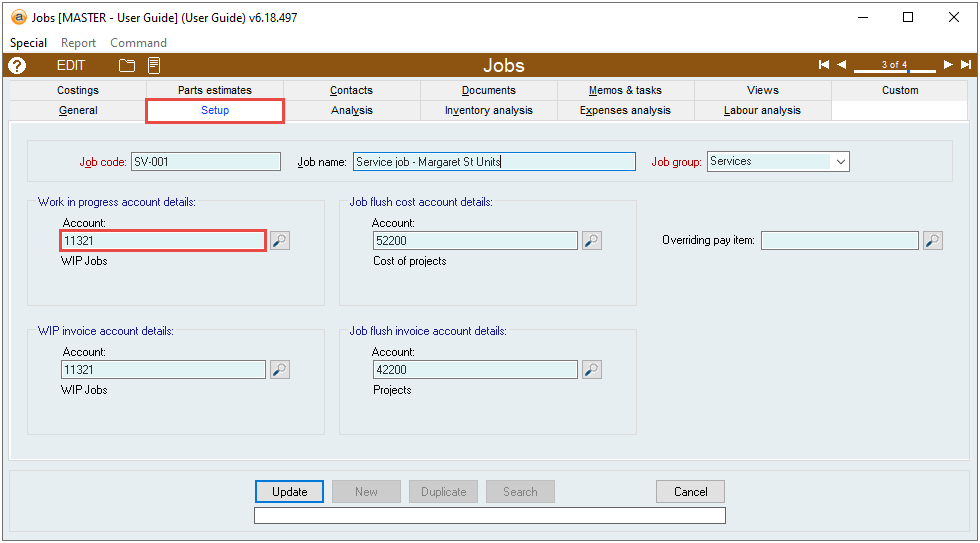
As long as the Job has a G/L account code specified here, it will post all costs to this account (providing the Job has not already been flushed).
Setting up a Job to make income post to a WIP account
- Navigate to Job costing > Jobs and fetch the Job you are intending to modify.
- Select Edit and navigate to the Setup tab.
- Enter an account code in the WIP invoice account details field.
- Select Update to save your changes.
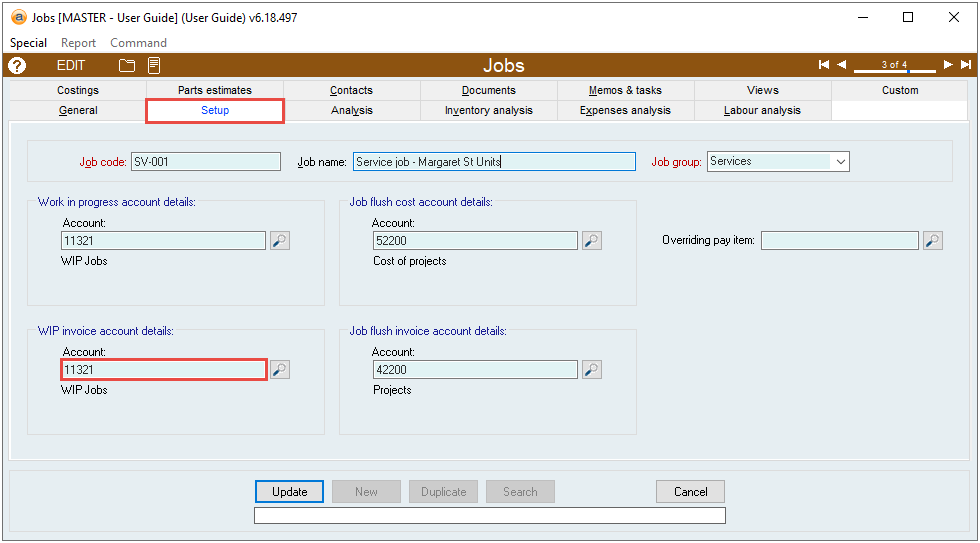
As long as the Job has a G/L account code specified here, it will post all income to this account (providing the Job has not already been flushed).
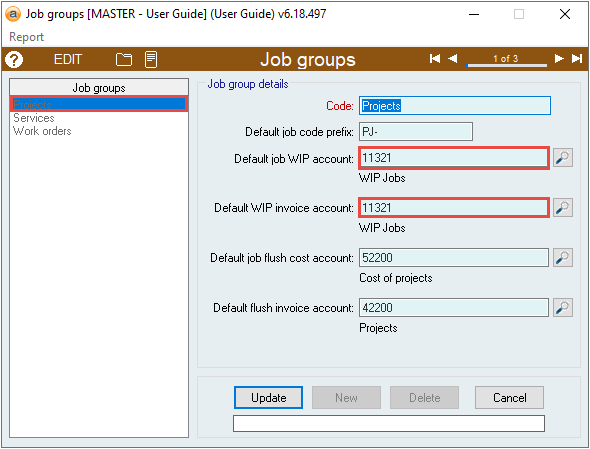
Setting default WIP accounts for all new Jobs
- Navigate to Job costing > Setup > Job groups and select the Job group you are intending to modify.
- Select Edit.
- Set the default WIP cost account in the Default job WIP account field, and the default WIP income account in the Default WIP invoice account field.
- Select Update to save your changes.
Flush override setup
You can decide which accounts to use as your flush override accounts for both costs and invoice.
- You may decide to use the same account as your income and costs flush override accounts.
- You can decide to have only a costs flush override account, or only an invoice flush override account.
- You can have separate accounts as your costs flush override account vs invoice flush override account.
You can also set a default flush override account for all new Jobs that belong to a certain Job group so that you don’t have to remember to set them each time you create a Job.
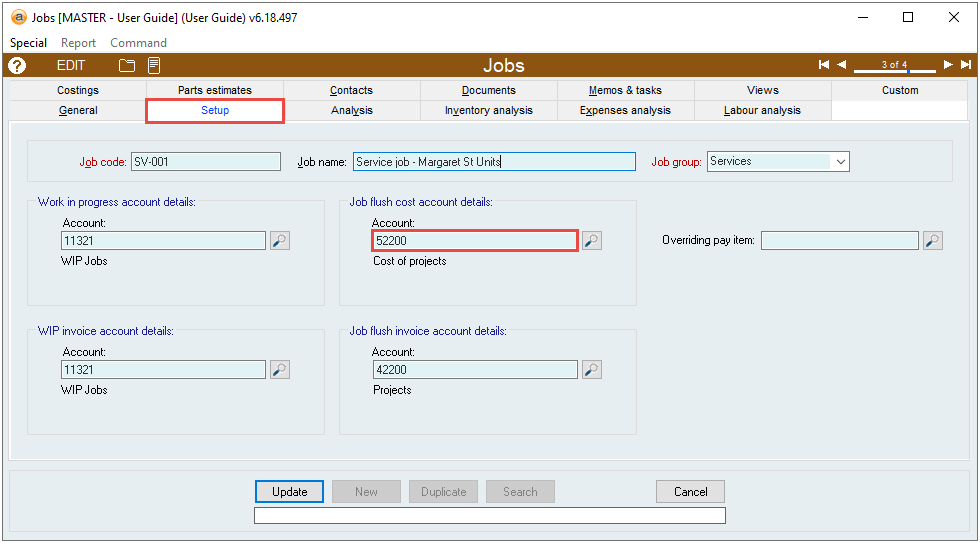
Setting up a Job to make costs flush to an override account
- Navigate to Job costing > Jobs and fetch the Job you are intending to modify.
- Select Edit and navigate to the Setup tab.
- Enter an account code in the Job flush cost account details field.
- Select Update to save your changes.
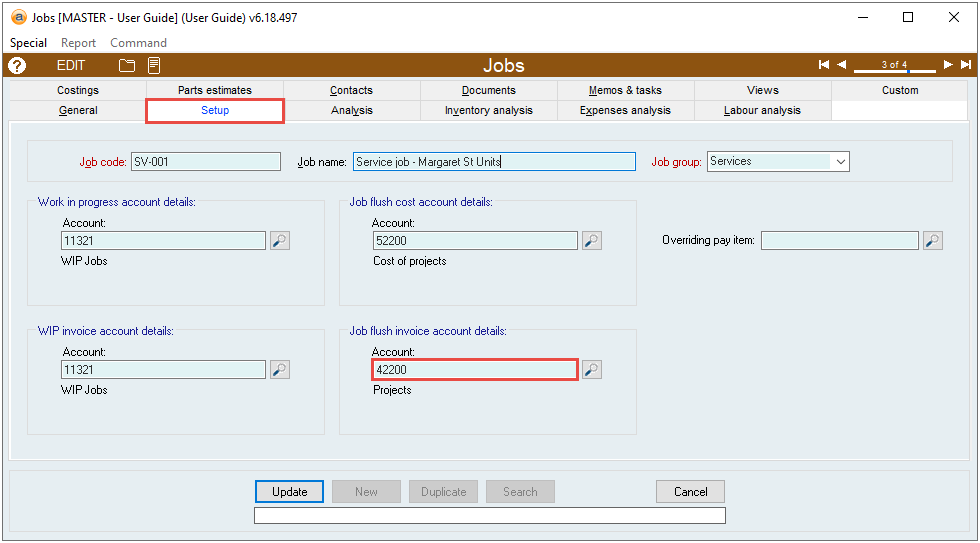
Setting up a Job to make income flush to an override account
- Navigate to Job costing > Jobs and fetch the Job you are intending to modify.
- Select Edit and navigate to the Setup tab.
- Enter an account code in the Job flush invoice account details field.
- Select Update to save your changes.
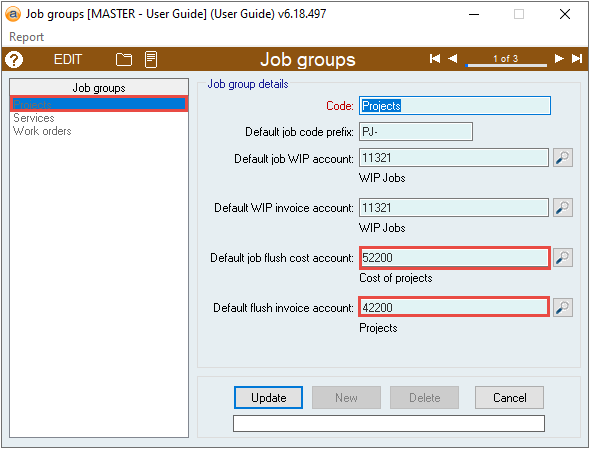
Setting a default flush override account for all new Jobs
- Navigate to Job costing > Setup > Job groups and select the Job group you are intending to modify.
- Select Edit.
- Set the default flush cost account in the Default job flush cost account field, and the default flush income account in the Default flush invoice account field.
- Select Update to save your changes.
Important to note
Changing a Job’s WIP or flush accounts won’t affect past transactions
You can change the WIP or Flush override account for a job at any time, but it will only affect the transactions that are executed from that point on onwards. Accentis Enterprise won’t go back and re-transact the past transactions, so keep in mind that if you change these accounts mid-stream then you may have a mixture or transactions that have been flushed and posted directly to the P&L.
A Job can only be flushed once
Once you flush a job as at a specified date, then any transactions to the job from that point onwards will post directly to your P&L. You can’t flush the job again once it has been flushed and you can’t accumulate any more costs while the job is flushed.
You don’t need to flush a job that has no WIP account
If a job has no WIP account, then all transactions for the job post immediately to the P&L (or the job’s flush override account). Therefore, flushing a job that has never had a WIP account will not perform any transactions.
If you leave a job unflushed it can hide costs forever
It is important to understand that the WIP mechanism capitalises costs or income into your balance sheet. If you have costs (especially labour costs from timesheets) being posted to a job that is never flushed, you can end up with a substantial value in a WIP account on your balance sheet instead of your P&L which can skew your profit and tax position.
Flushed transactions are locked
Once a transaction has been flushed (that is, the transaction was linked to a job that has/had a WIP account specified and that job has now been flushed) then the transaction is locked. You can’t make changes to any record that contains a transaction for a job that has been flushed.
FAQ
Can you accumulate costs into WIP after a job has been flushed?
No. Once a job has been flushed, then all costs and income related to that job will post directly to the P&L.
Can you flush a job each month?
No. Once a job has been flushed, then it cannot be re-flushed unless all prior transactions are first unflushed.
Can you flush a job that contains transactions in a locked period?
Yes. The date of the original transaction is not relevant to the date of the flush.
Can you un-flush a job that was flushed in a locked period?
No. A flush transaction is subject to the same lockout rules as any other transaction, so you can’t “undo” a flush if the flush happened in a locked period (unless you unlock)
Can you flush a job without closing it?
Yes. You can flush a job and keep it open for future transactions; however, those transactions will post directly to the P&L.
Can you close a job without flushing it?
No. A Job can only be closed once it has been flushed. That’s because once a Job is closed, no further transactions can occur (including the necessary flush transactions).
Can you have multiple cost WIP accounts for a single job?
You can only have one WIP account linked to a Job at any one time, but you are able to change the Job’s WIP account while it is still open. Any future WIP transactions will be redirected to the newly set WIP account. Once the Job is flushed, the corresponding transactions (for that Job) will be taken from both WIP accounts.
You may find a convenient use case for this mechanism, for example, changing the WIP account to a different account per month or financial year.
Last edit: 12/11/2025