How do I close a work order without deleting it?
Quick Answer
Create a 0 qty finish action to mark the work order as completed.
Overview
As with any other work order, if you want to cancel a work order without deleting it, you will need to create a finish action to mark it as complete. The way you go about this depends on the current state of the work order, and whether timesheet costs have been recorded against it.
If timesheet costs have been recorded against the work order, you won't be able to create the 0 qty finish action necessary to complete it. For more information regarding this process, please see Why can't I finish Work orders with 0 qty that have Timesheet labour costs?.
OPTION 1: The work order has NOT been committed
To prevent the kit's components from being consumed when you create the finish action, you will first need to reduce the quantity requested on the work order.
- Edit the work order and change the Quantity Requested to 0.
- Navigate to the Action menu and select Finish building kit.
- Set the Quantity finished to 0 and tick This work order is complete.
OPTION 2: The work order has been committed but NOT started
- Navigate to the Work order actions tab.
- Select Remove last action to clear the commit action.
- If the work order date is in a locked period, you won't be able to delete commit action. In this case, create a new commit action (Action > Commit stock…) equal to the negative amount currently committed.
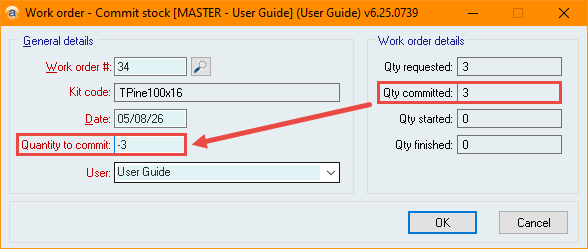
- The work order is now not committed. Follow the steps in OPTION 1: The work order has NOT been committed to close the work order.
OPTION 3: The work order has been started
If the work order has been started, you may want the currently consumed components to remain consumed (e.g. if the components have already been used and are not salvageable), or you may want to return them to stock (e.g. if the start action was created but no work was actually done to any component).
In these cases the process is slightly different.
Returning the components to stock
- Navigate to the Work order actions tab.
- Select Remove last action until you have cleared the start action.
- If the work order date is in a locked period, you won't be able to clear the started action. In this case, create a new start action (Action > Start building kit…) equal to the negative amount currently started.
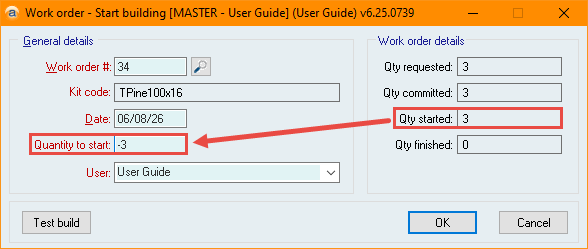
- The work order is now not started. Follow the steps in OPTION 2: The work order has been committed but NOT started to close the work order.
Leaving the components consumed
- Edit the work order and change the Quantity Requested to the quantity started.
- Navigate to the Action menu and select Finish building kit.
- Set the Quantity finished to 0 and tick This work order is complete.
This will complete the work order without adding any consumed components or kits to stock.
Did you find this article helpful?
If this article is missing information, ambiguous or didn’t give you clear instructions, let us know and we will make it better! Please email us and quote the KB# in the top right of this article to let us know why it didn’t help you out and we will point you in the direction of additional information.
Last edit: 07/08/2026