How to correct an incorrect batch or serial number in a finished work order
Quick Answer
Adjust the quantities of the stock OR unfinish the work order and change its components.
Overview
Sometimes, you may find that the batch or serial number of a component used in work order is incorrect.
There are two main methods to correct this, and the method you choose depends on the level of auditing and tracking you need. You can either:
- Correct the stock levels of the component to adjust one batch/serial number IN and another OUT; or
- Unfinish the work order and change its components.
Correcting stock levels only
This is usually the easiest method and retains visibility that the error occurred, but since the stock adjustments aren't directly linked to the work order, it may not be initially obvious which components were actually used in the kit - especially in cases where provenance tracking is important.
- Navigate to the Stock adjustment & revaluation form (Inventory > Stock adjustment/revaluation…).
- Select New and enter the relevant details for the batch/serial number that was incorrectly included on the work order.
- You may also want to include details in the Comments field advising why the stock adjustment is being performed, and which work order it affects.
- Set the Quantity to the amount consumed on the work order.
- Select Update to adjust that batch/serial number into stock.
- Select New to create another, separate stock adjustment.
- This time, enter the details for the batch/serial number that SHOULD have been consumed by the work order.
- You may also want to include details in the Comments field advising why the stock adjustment is being performed, and which work order it affects.
- Set the Quantity to the amount that should have been consumed.
- Select Update to adjust that batch/serial number out of stock.
Changing work order components
This is usually the most complete method for tracking and traceability of components, but you are removing any evidence that the mistaken number was entered at all.
You also may not be able to perform this process depending on the transactions that have been made with the work order or finished product after it was finished.
If you need to adjust the components after you have already dispatched the finished product, you will need to first set the Dispatch qty to 0 and re-enter it after the work order has been amended.
- Navigate to the Work order form (Manufacturing > Work order…) and fetch the affected work order.
- Navigate to the Work order actions tab and select Remove last action to delete the Finished action.
- Navigate to the Kit list tab and select Edit.
- Locate the relevant component and set its Qty Kitted to 0.
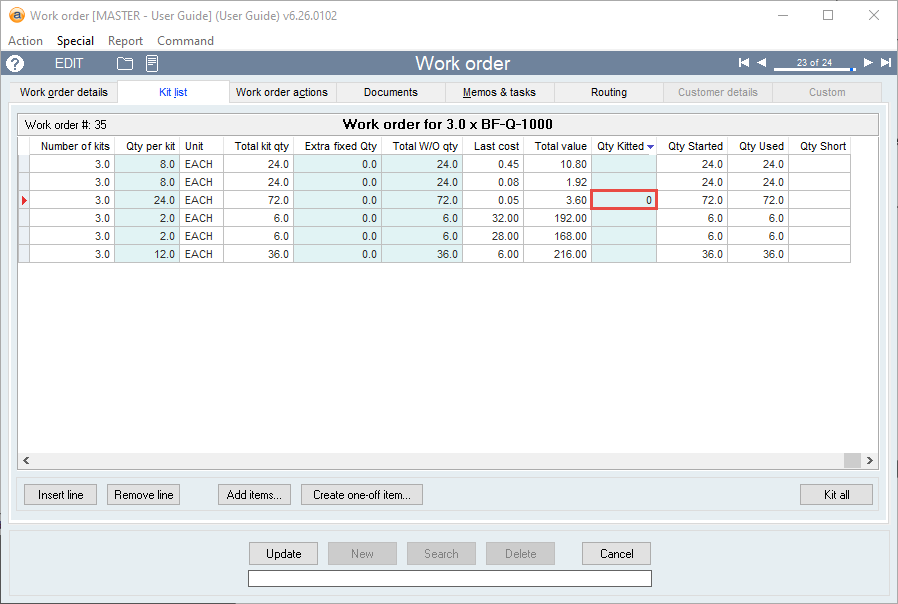
- Select Update to save your changes.
- You will now be prompted to select the relevant batch/serial number to return to stock.
- When prompted, select the batch/serial number and quantity that was incorrectly included on the work order, and select OK.
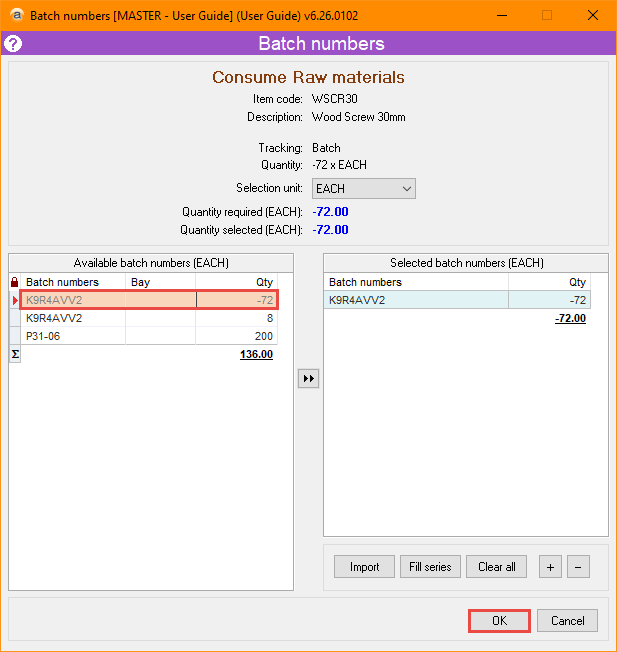
- Select Edit on the work order again.
- On the same component line as before, clear the Qty Kitted.
- You may notice that the component now has a Qty Short.
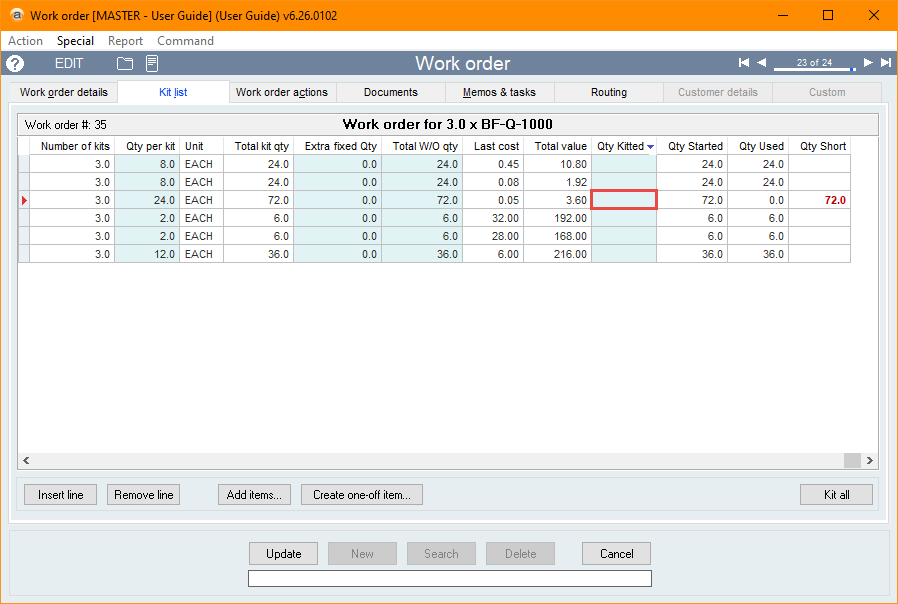
- Select Update to save your changes.
- When prompted, enter the batch/serial number and that number that SHOULD have been consumed by the work order, and select OK.
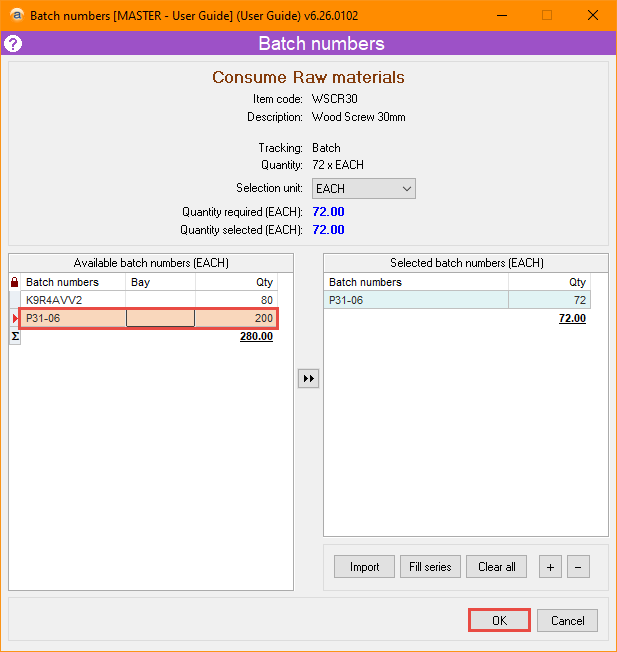
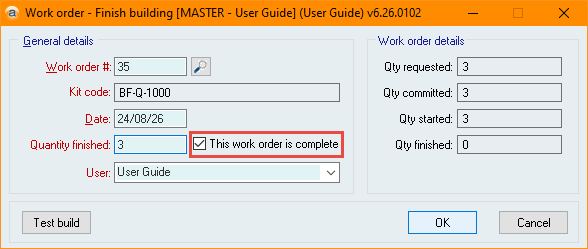
- From the Action menu, select Finish building kit and mark the work order as complete.
Did you find this article helpful?
If this article is missing information, ambiguous or didn’t give you clear instructions, let us know and we will make it better! Please email us and quote the KB# in the top right of this article to let us know why it didn’t help you out and we will point you in the direction of additional information.
Last edit: 01/09/2026