ERROR finishing a work order: A residual Work in Progress value exists upon completion of this work order, but you don't currently have any of the items you produced still in stock
Overview
Occasionally, you may find that you have an old unfinished Work order, where all the components were finished but the order was never marked as “completed”.
To clean up your inventory and accounts, you will need to complete this work order in Accentis Enterprise.
Typically, this is done by adding another FINISH action to the work order with a quantity of 0 and ticking the “Work order complete” flag. However, if the goods have since been sold and no quantity remains in stock, you may receive the following error:
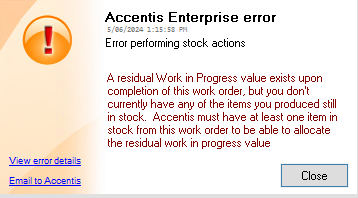
What this error means
This error occurs because ticking the “Work order complete” flag performs an important function; it tells Accentis Enterprise to allocate any residual Work in Progress (WIP) value to the item being finished.
However, if the item is not in stock, and the Finish Quantity is 0, then there is nowhere for the residual value to be allocated, and the action cannot be completed.
What is a “residual Work in Progress value”?
When you START a work order, the value of the materials being consumed and the value of labour are allocated to your WIP G/L account. This is a holding account that is designed to store the costs of the materials and labour of a work order while it is in progress and ensure that all values are correctly allocated to the finished kit when it is completed. Some work orders may have no residual WIP value when they are completed, but some may have a value (if only a few cents) that needs to be allocated to the item.
This works particularly well, for example, if the Cost price of one of your materials changes after you have started a work order, but before it is finished. This would result in a discrepancy between the finished value of the item and the aggregate value of the materials used to start the order.
Here’s a worked example of this scenario:
- WO 1 consists of the following materials:
- 1x Item A (cost price $15.38)
- 2x Item B (cost price $7.02)
- 1x Item C (cost price $3.57)
- WO 1 is STARTED, and the value of the materials is removed from your Stock on Hand account.
- At this point in time, that value totals $32.99.
- While you are manufacturing WO 1, you receive a delivery of Item C, but the supplier has increased their prices, and the cost price of Item C is now $3.99.
- WO 1 is FINISHED, and the value of the finished product is calculated using the cost prices of its materials. With the cost price increase of Item C considered, the value of WO 1 is $33.41.
- There is a residual value of 42 cents left against the work order.
- When WO 1 is completed, the residual WIP value is flushed and absorbed by the item.
Solution
There are two options to resolve this error.
If the work order actions can be modified
The best option is to re-finish the last item on the work order and flag it as completed. This will effectively function the same as if the work order was completed with the last finish action to begin with. This is only possible when the last action on the work order is not dated in a locked prior period. The process for this is quite simple:
- Reverse the last FINISH action.
- Go to Manufacturing > Work order > Work order actions and click on the last “Finished” action in the list.
- Click REVERSE last action.
- Take note of the quantity of items that existed on this action.
- Re-finish and complete the work order.
- Go to Action > Finish building kit.
- Ensure that the Quantity finished matches the quantity you reversed, and This work order is complete is ticked.
This will finish and complete the work order, allocating the residual WIP value to the item correctly. It is important to REVERSE the last finish action, rather than deleting it, as this will keep records of all actions taken. This is the best practice to simplify auditing, should you need to audit your records.
If the work order actions are in a locked period
If the last work order action is dated in a prior locked period, then the above process is not possible, as the FINISH action cannot be reversed. If this is the case, then the next best option is to create an additional item, finish and complete the order, and then perform a stock adjustment to correct your stock levels. The process for this is as follows:
- Increase the Qty requested for the work order by 1.
- Start 1 new item.
- Finish 1 item and ensure that This work order is complete is ticked.
- Create a stock adjustment for the item to remove the 1 new item from stock (as it never physically existed).
Did you find this article helpful?
If this article is missing information, ambiguous or didn’t give you clear instructions, let us know and we will make it better! Please email us and quote the KB# in the top right of this article to let us know why it didn’t help you out and we will point you in the direction of additional information.
Last edit: 28/04/2026