All about barcoding in Accentis Enterprise
Contents
Barcoding with Accentis Enterprise
What are the most common uses for barcodes in Accentis Enterprise?
How does Accentis Enterprise identify barcodes?
Making your own book of barcodes
Overview
Barcoding is one of the simplest yet most powerful ways to improve efficiency in your business. By turning long strings of text, numbers, or item codes into a single, scannable symbol, barcodes allow staff to complete tasks with speed and accuracy that manual entry simply can’t match. A single scan can process in seconds what might take minutes to type, eliminating errors and freeing up your team to focus on higher-value work.
In a warehouse, retail store, or office environment, this translates directly into time saved, reduced costs, and improved customer service. Whether it’s scanning items into a sales order, clocking employees in and out, or performing a stocktake, barcodes make everyday processes faster, more accurate, and easier to manage. The result is fewer mistakes, smoother operations, and a system that scales as your business grows.
Accentis Enterprise takes this even further by making barcoding an integrated part of your workflows. Rather than just recording numbers, the system understands context. The same barcode might increase the quantity of an item on a Sales order, add an item to a Dispatch, or open the item’s Inventory record. With this flexibility, barcoding becomes more than just a convenience: it becomes a smart tool for automation, consistency, and control across your entire business.
All about barcodes
What is a barcode?
At their core, barcodes are simply a quick and reliable way of representing numbers and letters in a machine-readable form. Instead of typing an Item code or serial number into your system, a barcode reduces that effort to a single scan. The scanner acts like a keyboard, instantly entering the code without mistakes.
A barcode uses a series of lines and spaces of varying thickness to represent anything that can be written out as a series of characters, including:
- Item codes
- Employee numbers
- Website URLs
- Anything that can be represented by a set of numbers and letters.
A barcode is just a shortcut – it will input text into your computer when scanned, and your computer will be programmed to interpret that text in a certain way. Scanning an item at a shop register is no different than typing the item code in manually – it’s just a lot quicker!
Types of barcodes
There are many different types of barcodes. This is because over time, and as technology has changed, the capabilities and requirements of these codes have changed too.
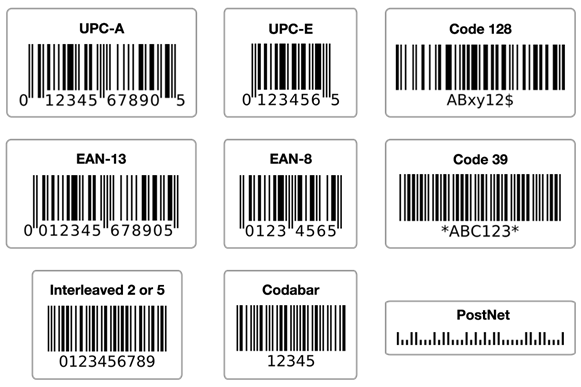
One thing all of these formats have in common: the barcode translates to a sequence of letters or digits – that’s all. It is the meaning of those letters and digits that is important, not how they are represented on the label.
If you have items shipped to you, they will almost definitely already have barcodes on them. Some of the more common types that will be on items that are shipped to you are:
Code 39 (Code 3 de 9)
Code 39 is one of the simplest ways to encode information in a barcode. It uses a series of thick and thin lines that correspond to specific characters. The drawback to this method that it only supports numbers (0 – 9), uppercase letters (A – Z), and some special characters (-, ., $, /, +, %, and space).
A QR code
Often, shipping labels will use QR (quick response) codes to facilitate shipment tracking within a postage organisation. This code will usually mean nothing to the receiver of the goods. QR codes most frequently represent a website URL, so a QR code on your received goods could link to the Supplier’s website, the shipping company’s website, or any other relevant web page.
A GTIN
A GTIN is a Global Trade International Number, which is a barcode that represents a unique product and can be recognised anywhere in the world. It is usually in an EAN-13 format (a 13-digit number), though the barcode can be in a handful of formats. Retail store items like a loaf of bread or a pot plant will usually use GTIN barcodes, as custom codes are only useful to the company that makes the goods. GTIN barcodes need to be bought from an organisation that administers the codes.
The item’s SKU or item code
A barcode that represents a Supplier item code/SKU is not internationally recognised and is not guaranteed to be unique. However, it can be useful to store against your item code so that if it is scanned, Accentis Enterprise knows which Supplier’s product it is.
What do barcodes mean?
The content of a barcode does not change; it always refers to the same set sequence of characters. They can, however, mean different things to different organisations or software!
For example, a barcode could represent the code EM90052. In your organisation, that code may refer to an employee record. However, in the store down the road, that same code may refer to a bag of oranges. Both barcodes are the same, and both scanners register the same code, but the two systems are programmed to see that code completely differently. As you can imagine, without any kind of consistency or global administration of barcodes, things can get out of hand pretty quickly.
Where will you find barcodes?
- Items that you are shipped to you will likely have the supplier’s barcodes. (You may be able to use their barcodes to scan items into your own system!)
- Documents that you receive may have barcodes to represent item serial numbers or supplier invoice numbers.
- Documents that you generate can include barcodes that represent record numbers so they can easily be displayed on the screen, or they can be used for staff cards for easy clock-in and clock-out.
Why use barcodes?
Accuracy
Barcode scanning is more accurate than typing. When the barcode is represented correctly on the goods (which is almost certainly the case as the labels themselves are generated by computer), then you can guarantee that what you are scanning is the correct code – there can be no typos in a properly readable barcode.
Amongst other things, with increased accuracy you can:
- Reduce the likelihood that an incorrect part will be picked from the warehouse onto a sales order.
- Reduce the likelihood that an incorrect part will be sold over the counter on a POS or direct invoice.
- Reduce the likelihood that an employee is clocking onto the wrong job.
Speed
Barcodes are a faster way of typing letters or numbers, it’s that simple. If you need to tell the system you are dispatching an item that has a 15-digit serial number, you can either type the digits into a window or you can scan the barcode.
Amongst other things, with increased speed you can:
- Quickly verify that all parts that have been picked are indeed the correct parts.
- Easily tell the system that parts have been picked prior to dispatch.
Accentis Enterprise integration
When barcodes are programmed and printed from Accentis Enterprise, you can also use special characters that tell the program to take certain actions, such as:
- Opening certain reports.
- Entering a timesheet entry for an employee.
- Logging out of the system.
You can also program these barcodes to use characters that don’t exist on a standard keyboard, allowing you to quickly take actions that you can’t take by simply typing on your keyboard.
All about barcode scanners
What is a barcode scanner?
A barcode scanner is just like a computer keyboard, except that, unlike a keyboard, a single scan can type the sequence of letters or digits represented by a single barcode in one go. That’s it – it’s a glorified keyboard!
The thing that makes barcode scanners useful is that they can ensure that this sequence of letters or digits is accurately sent to Accentis Enterprise with no errors.
Types of scanners
Laser scanners
A laser scanner uses a laser beam and mirrors to read traditional 1D barcodes by detecting the light reflected from the black and white lines, making it fast and accurate for retail or warehouse use.
Image scanners
An image scanner (or imager) captures a digital image of the barcode using a camera and decodes it with software, allowing it to read both 1D and 2D codes (like QR codes) from paper, screens, or damaged labels.
RFID scanners
An RFID scanner, on the other hand, uses radio frequency signals to read information stored on RFID tags without needing a direct line of sight, enabling quick and contactless scanning of multiple items at once.
While technically not a barcode scanner, as long as the information that is being encoded is the same, the result will be the same.
Smart scanners
Smart scanners are unique in their capability to scan information, store it, and then transfer it to a computer later. They are the same as a normal barcode scanner, only with a memory bank to store scanned codes. When you use a smart scanner:
- You can scan multiple barcodes which get stored in the scanner’s memory bank.
- Then, when you put the scanner in its dock or cradle, it transfers all its data into an application on your computer.
- The application must be programmed to understand what data it is accepting, and what to do with it.
- Smart scanners can also operate over Wi-Fi.
What scanner should I buy?
Things to consider when choosing a barcode scanner
There are several different scanner types to consider based on their function. You will want to determine what you want to use the scanner for most frequently and use this to guide your decision.
We don’t recommend any specific devices. Once you know the capabilities you require from the scanner, you can choose the style of scanner.
Some of the questions you should be considering:
Do you want to scan items? Do you want to scan employee cards? Do you want to scan onto work orders? Do any of these actions take place in low lighting or dirty environments? Is the scanner likely to be handled roughly – should it be rugged? Will you only be scanning internal documents in an office environment?
Then you also have to consider your barcodes:
Do you print your own? Do you want to scan barcodes that are small, obscured, or dirty? Will you need to be able to scan 2D (e.g., QR) codes? Will you need to be able to scan one barcode at a time on a page with multiple barcodes?
Consider what your requirements are, talk to vendors, and research which type of scanner would suit your needs the best. As long as Accentis Enterprise knows what to do, it doesn’t matter which type of scanner you buy.
Is a wireless scanner better than a wired scanner?
A wireless scanner is more convenient physically, however you will still need to be in sight of the screen to be able to see what the scanner is sending to the application. You won’t be able to take the scanner away, scan an item, then come back to a perfectly input item code. If you want to frequently scan items away from your screen, it may be better to use a smart scanner, which is capable of this functionality.
What are my options when it comes to scanning?
The following section is a breakdown of some of the benefits and uses of different styles of scanners.
| Key information | What you'll need | |
| Corded scanner |
|
|
| Wireless scanner + Desktop running Accentis Enterprise |
|
|
| Wireless scanner + Laptop running Accentis Enterprise |
|
|
| Wireless scanner + Tablet via RDP |
|
|
| Wireless scanner + Phone / Tablet via AWF web portal |
|
|
| Smart scanner |
|
|
Barcoding with Accentis Enterprise
Barcodes can be used to tell Accentis Enterprise what to do and which action to take. When you scan a barcode whilst logged into Accentis Enterprise, the program will look at the text that you have scanned and decide which action to take depending on:
- Which screen you are on or form you have open.
- Whether or not any special characters have been used to indicate specific actions.
- This is only applicable to Accentis formatted barcodes.
Accentis formatted barcodes
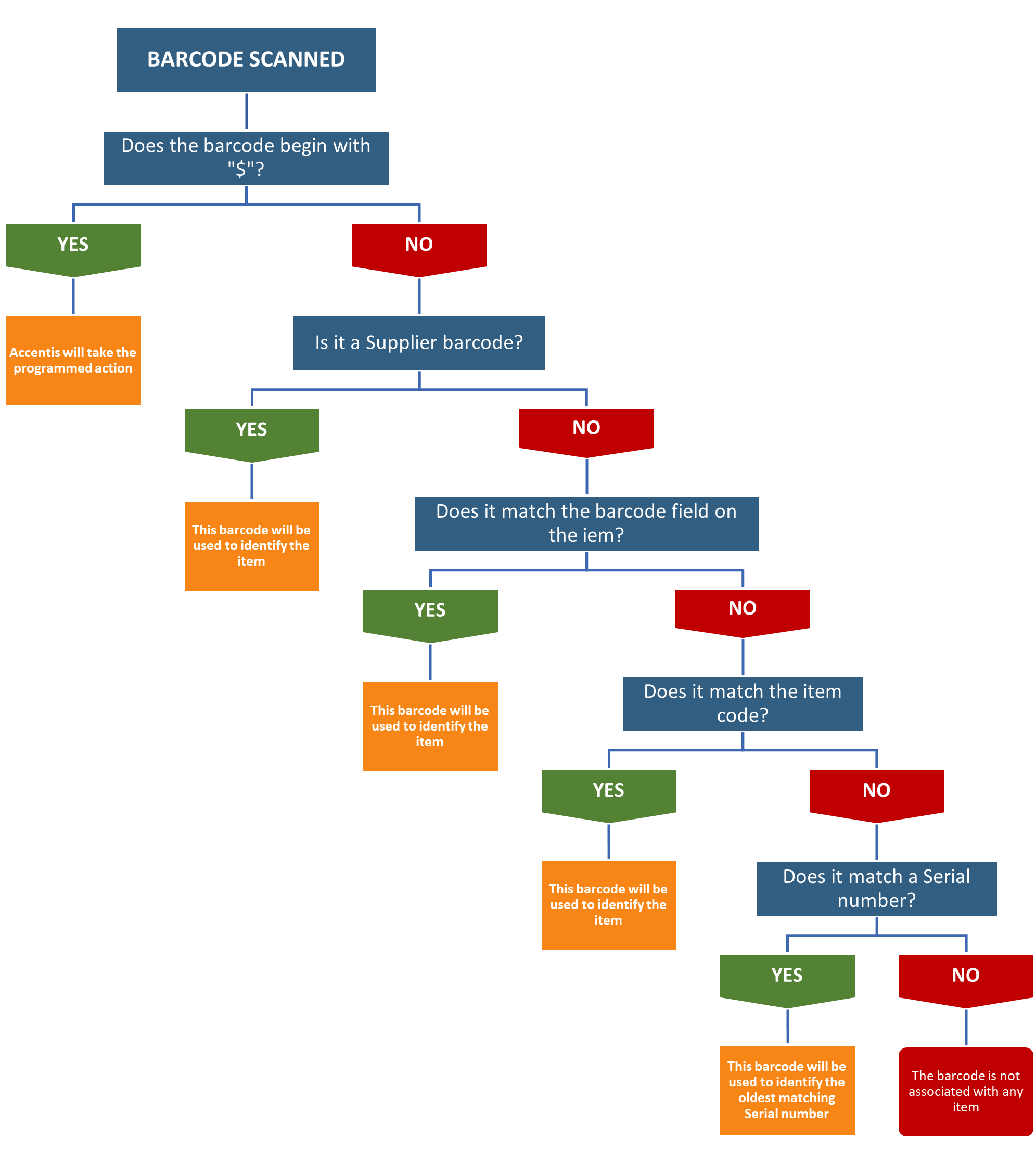
If the first character of any barcode is a $, and the barcode scanner has been setup through a COM port (please see How does Accentis Enterprise interface with a barcode scanner?), the barcode is treated as an Accentis formatted barcode. This means that the barcode will be checked for additional function data in this format:
$<Function Code><Function Data>
- The Function Code represents pre-defined actions that Accentis Enterprise is programmed to take such as creating a new record, logging a user in or out, or starting or stopping a Work order route.
- The Function Data is dependent on the Function Code but usually represents the type or number of the relevant record.
What are the most common uses for barcodes in Accentis Enterprise?
- Timeclock
- Scan your employee card to clock on or off (when the Timeclock is open).
- Point of Sale
- Scan an item’s barcode to add that item onto a POS invoice (when a POS invoice is open and in ADD/EDIT mode).
- Dispatch
- Scan an item’s barcode to increase the Qty dispatched (when a Dispatch is open and in ADD/EDIT mode).
- Receive
- Scan a batch-tracked item’s barcode to add its Serial number to a Receive’s batch assignment (when a Receive is open and in ADD/EDIT mode, and when the Serial/Batch assignment window is open.
- Stocktake
- Scan an item’s barcode to add it to a Stocktake (when a Stocktake is in progress), then add a quantity.
How does Accentis Enterprise identify barcodes?
If you are using a scanner with a KB wedge connection, no special interpretation will take place. The data will be input exactly as if it was typed.
If you are using a scanner with a COM port connection, Accentis Enterprise will use the following flowchart to determine which action to take. For more information regarding KB wedge and COM port connections, please see How does Accentis Enterprise interface with a barcode scanner?
Items and barcodes
How many barcodes can represent one item?
The number of barcodes that refer to a single Inventory record (item) depends on the number of Suppliers for that item.
A single Inventory record (item) can be referred to by:
- The barcode that directly represents the Item code.
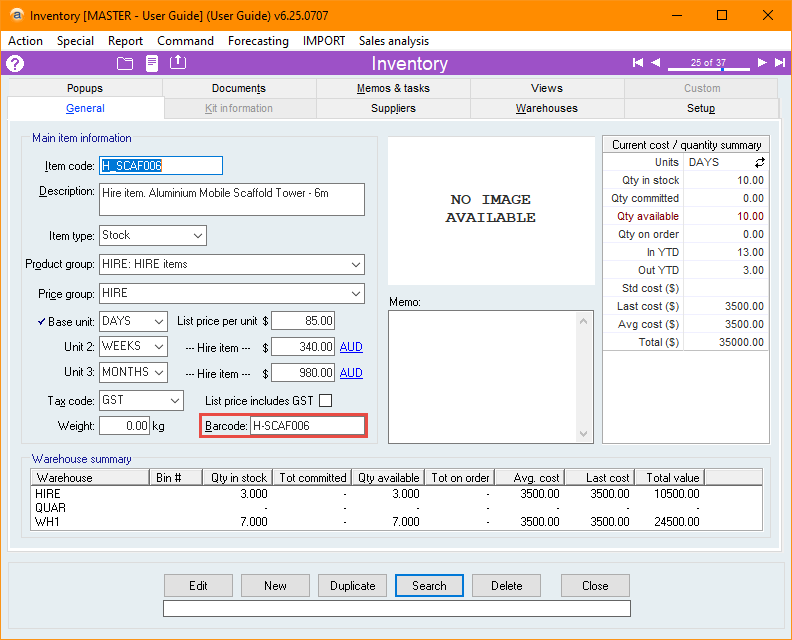
- An alternative barcode that is listed in the item’s Barcode field.
- The barcode that is used by the item’s Supplier (one barcode can be specified per Supplier).
Item code barcode
Each Inventory record (item) has an item code, and this item code can be represented directly as a barcode. This barcode does not have to be specified anywhere as it is the default barcode for the item.
Alternative barcode
Each Inventory record also has a field into which you can add one alternative barcode. This barcode does not have to exactly match the item code, but by adding it to the Item’s barcode field, Accentis Enterprise will understand which item it represents.
If this barcode field is blank, it means that you want to use the item code barcode – which means that you don’t have to attach a barcode to each item if you are not using special barcodes!
Supplier barcodes
You can also store Supplier barcodes. Your Item code is likely different than the Supplier’s item code, and by extension, their barcode. It can be helpful to store Supplier barcodes so that if that barcode is scanned, Accentis Enterprise knows which item it represents.
This also means that you don’t have to re-barcode every item if you don’t wish to. These are stored per supplier on the Suppliers tab of the item.
Barcode-aware forms
Most forms in Accentis Enterprise are automatically barcode-aware. This means that barcodes can interact differently depending on which form is currently open. This only works if the scanner you are using is connected via a COM port. For more information regarding COM port connections, please see How does Accentis Enterprise interface with a barcode scanner?
Below is a breakdown of the most common actions forms.
| Sales quotation |
|
| Sales order |
|
| Dispatch |
|
| Sales invoice |
|
| Receive |
|
| Supplier invoice |
|
| Inventory |
|
| Stocktake |
|
| Stock transfer |
|
| Stock assignment |
|
| Item serial |
|
| Inventory location assignment |
|
| Item barcode assignment |
|
| Dynalists |
|
| Timeclock |
|
What happens if there are no forms open?
So, we’ve established that scanning a barcode while certain forms are open will take certain actions. But what happens if you scan a barcode when only your Accentis Enterprise Toolbar is open?
It’s quite simple – if you scan a barcode when no forms are open, Accentis Enterprise will open the record for that barcode. For example, if you scan the barcode for Work order #23 ($F1E23) from the Toolbar, Accentis Enterprise will open Work order #23.
This makes it easy to look up or edit without having to open the specific form first.
Printing your own barcodes
Why print your own barcodes?
There are a few reasons why you might choose to print your own barcodes from Accentis Enterprise:
- Goods don’t always come with barcodes.
- If most of your Suppliers use barcoding, but one doesn’t, then you may have some goods without barcodes in your Inventory.
- Accentis Enterprise has some special barcodes that tell it to do certain things.
- For example, an Employee Clock on barcode (*$C6D) tells Accentis Enterprise to clock on the employee in question.
- Branding and consistency.
- Barcoding and labels can be an opportunity to standardise your items and advertise your business.
- It is easy to do.
- Printing barcodes from Accentis Enterprise only requires a report and a printer.
- Some printers can be special (e.g. Laser engraving), but they are still just printers.
Things to consider when designing a barcode
Consider what you want the barcode to do when you scan it, and how much information you want available when it is scanned.
- What is the barcode’s role pointer or container?
- Will the barcode simply point to a record in Accentis Enterprise (like an Item), or must it contain all necessary information by itself.
- How much data can the barcode type handle effectively?
- 1D barcodes (like Code 128 or EAN-13) have limited capacity.
- 2D barcodes (like QR or Data Matrix) can store much more — up to thousands of characters.
- How large can the barcode be on the label or package?
- The more data you encode, the denser (and harder to scan) the barcode becomes.
- If label space is limited, you may need to minimize the data stored directly.
- What is the scanning environment?
- In fast-paced or industrial environments, shorter barcodes with less data are more reliable.
- In controlled settings, denser codes with more information may be acceptable.
- Are you using Serial or Batch tracking?
- If products or documents needs unique data (like serial or batch numbers), the barcode may need to include this.
- Is any of the information sensitive or confidential?
- The more data you include, the greater the risk of exposing sensitive details.
- Remember, Accentis formatted barcodes allow you store references to specific records, instead of the information itself. This keeps the barcodes short, and the information hidden!
Things to consider when choosing a barcode format
Before choosing a barcode format, it’s smart to ask yourself a few key questions to make sure it suits your purpose, technology, and environment. Some of the questions you should be asking are:
- What is the purpose of the barcode?
- Is it for retail sales, inventory tracking, shipping, internal identification, or another specific use?
- What kind of data needs to be encoded?
- Will it contain only numbers, or include letters and symbols? How long is the data string? Does it need to include additional information like batch numbers, expiry dates, or URLs?
- What type of scanners or readers will be used?
- Will it be scanned by a laser scanner, image-based scanner, smartphone camera, or another type of device? Are those scanners compatible with 2D codes?
- Where will the barcode appear?
- Is it going on product packaging, a shipping label, a document, or a small component? How much space is available for the barcode?
- What industry or compliance standards apply?
- Are there regulatory or industry requirements to follow, such as GS1 standards for retail or healthcare?
- What printing or labelling equipment is available?
- Can your printers produce high-resolution or 2D barcodes? What materials will be used for the labels?
- Who will be scanning it, and where?
- Will it be scanned by internal staff, customers, or external partners? Will scanning happen in controlled environments or in the field?
- Do you need human-readable text as well?
- Should the barcode include a printed version of the code beneath it for manual entry if scanning fails?
Things to consider when choosing a barcode printer
This depends on the purpose of the barcode. Consider the following when deciding which device to use to print your labels:
- What type of barcodes will I be printing?
- Will you print 1D barcodes (like Code 128 or EAN-13), 2D barcodes (like QR or Data Matrix), or both?
- How many labels will I print per day or week?
- Is this for occasional use, moderate daily printing, or high-volume industrial production?
- What size and material are the labels?
- Will they be small tags, large shipping labels, or specialized materials (plastic, metallic, synthetic)?
- Do you need to print on rolls, sheets, or continuous media?
- What print quality or resolution do I need?
- Do your barcodes require high resolution for small or dense codes, or will standard printing be sufficient?
- Where will the printer be used?
- Will it sit in an office, warehouse, or industrial environment? Does it need to be rugged or portable?
- What kind of printing technology suits my needs?
- Will you use thermal transfer (for durable, long-lasting labels) or direct thermal (for short-term or indoor use)?
- Do you need colour printing?
- What connectivity options are required?
- Will it connect via USB, Ethernet, Wi-Fi, or Bluetooth?
- What label volumes and roll sizes can it handle?
- Will you need large label rolls for continuous operation or smaller rolls for occasional jobs?
- Do you need mobility or remote printing?
- Will labels be printed in fixed locations or on the go (e.g., handheld or vehicle-mounted printers)?
Examples:
Regular A4 laser printer:
- Can print using your laser printer, and sticker stock is readily available.
- Stickers come in a variety of sizes.
- Example of use:
- Printing stock labels for a range of stock so that you can label shelves.
Personal label printer from office supplies
- Cheap, come with a range of label stock, good performers for small volume.
- Great to print labels one at a time.
- Example of use:
- Fixed asset identification as you buy a new asset.
- Goods inwards – printing x labels – one for each product received.
Making your own book of barcodes
If a barcode you’ve scanned matches an existing Item code, even if nothing is set in that item’s Barcode field, Accentis Enterprise will return that item’s Inventory record. This means you can create a book of quick-reference barcodes on your own.
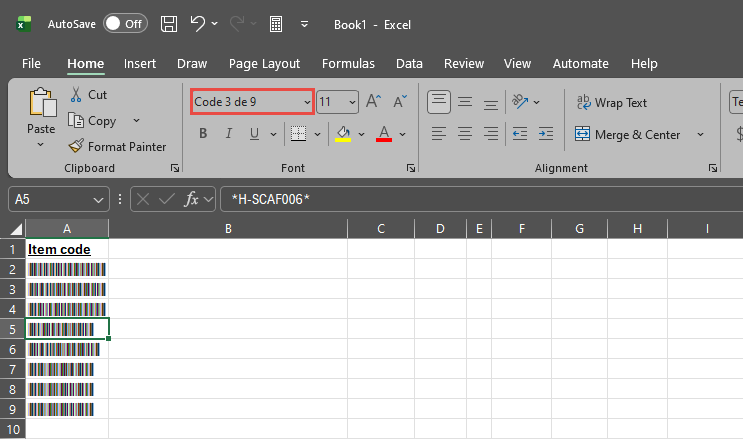
The easiest method to do this on your own is to use Microsoft’s in-built Code 3 de 9 typeface. Other methods of encoding often include a check character to make sure the barcode is valid. This means that creating a barcode using a different method isn’t always as simple as a direct character-to-character match.
Restrictions
There are certain restrictions that apply when making your own barcodes using this process. If a desired Item code doesn’t follow these restrictions, you can set a custom code in the Barcode field that does. When you scan a code matching the Barcode field, it will return the Inventory record as if you’ve scanned the Item code.
- Code 39 (Code 3 de 9) only supports numbers (0 – 9), uppercase letters (A – Z), and some special characters (-, ., $, /, +, %, and space).
- If a barcode begins with $, it is considered to be an Accentis formatted barcode. Instead of searching for an Item code or serial number, it will perform a programmed action.
- Code 39 (Code 3 de 9) must have an encoded * character at the start and end of the barcode. This tells the barcode scanner where the barcode information starts and stops.
- Make sure the Item codes that you want to include contain only supported special characters (-, ., $, /, +, %, and space).
- If an Item code contains any unsupported special characters (including Item codes that start with $), then you can enter your own custom code into the item’s Barcode field.
- Copy or type the codes from the Item code field (or Barcode field if you’ve set one in the previous step) into an Excel spreadsheet.
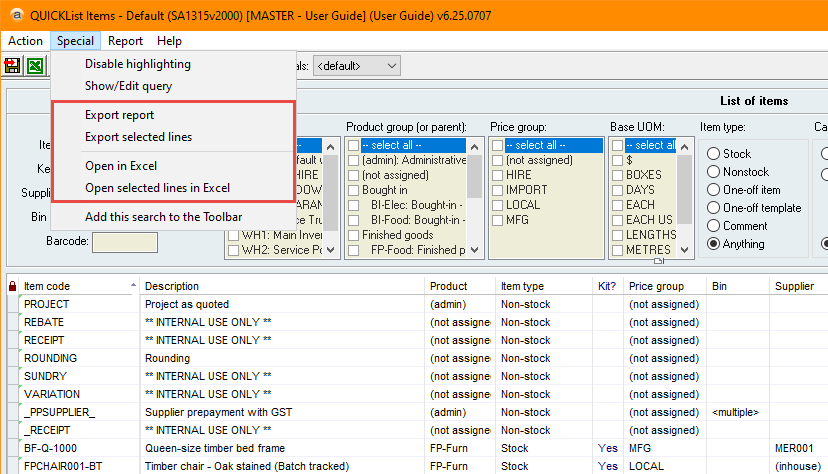
- Remember you can open a list of items in Excel directly from a Search from the Special > Open in Excel or Special > Export report options. If doing this, you may want to delete any unnecessary columns.
- Capitalise any lowercase letters.
- Type * before and after the codes to act as the start and stop characters.
- For example *H-SCAF006*
- Highlight the cells to be encoded and change the typeface to Code 3 de 9 from the font menu.
- You can now re-arrange the information to be multiple columns, include text in a different font so it’s easy to see which item the barcode corresponds to, or to change the font size.
- Navigate to File > Print and print your newly created, scannable barcodes.
FAQs
- Will the use of barcodes eliminate my stock control issues?
- No, but it can make stock control easier. Barcodes speed processes up, and help reduce human error when typing in codes, but if your stock control processes are flawed or ineffective, using barcodes will not magically fix it.
- Do I have to re-label all of my stock?
- No - you can use Supplier barcodes, or you could slowly transition new labels in by adding new labels to any new stock, and selling your old stock out until all stock is labelled with your barcodes.
- Keep in mind that barcoding is supposed to make your life easier – they are not mandatory and can be used however you choose!
- Does every item need a barcode?
- Definitely not! How you use barcodes is completely up to you and your company.
- Can I create my own book of barcodes to scan?
- Yes! Accentis Enterprise doesn’t need to generate the barcodes for them to work. As long as the barcode encodes the same information (e.g. the Item code), they will function exactly the same.
- This means that you can create your custom book of frequently used barcodes to speed-up your processes. The easiest way to do this (besides having Accentis create a custom report!) is to type or copy the Item code into Excel or Word and use Microsoft’s in-built Code 3 de 9 font.
- Look in the Making your own book of barcodes section to see how!
For the nerds
Configuring barcode scanner
For information regarding how to configure your barcode scanner, please see Configuring your Barcode Scanner.
How does Accentis Enterprise interface with a barcode scanner?
COM port
This is the best connection method because Accentis Enterprise can determine that the code has been scanned and can use this knowledge to decide what action to take. For example, if you have a Dispatch open and you scan an Item code using a scanner plugged into a COM port, Accentis Enterprise can determine that the Item code should be put into the Item code box on your Dispatch form.
KB wedge (HID)
This connection means that the scanner will act just like a keyboard to Accentis Enterprise – the data will still be input correctly, but no special actions can be taken. Using a KB wedge connection limits the ability of Accentis Enterprise to make smart decisions on keystrokes. This means that when you scan an item using a scanner plugged into a KB wedge port, the scanned data will be input into whatever field has been clicked on, regardless of whether the text is an item code, employee code, etc.
Last edit: 09/02/2026