Current user logins
Accentis Enterprise stores the details of every user who is currently logged in to a database. With appropriate permissions you can view this list, broadcast messages to selected users and forcibly logout users.
 Features
- Complete details of every user currently logged in to the current database or (if with Administrator permissions) users logged in to all other databases.
- Users can be forcibly logged out of a database
- Messages can be broadcast to users
Current user logins form
Module: System
Category: User logins
Activation: Main > System > Database administration > Current user logins
Form style: Multiple instance
Special actions available for users with Administrator permissions:
- Messages can be broadcast to users
- Users can be forcibly logged out
Database rules:
- None
Field definitions
Main
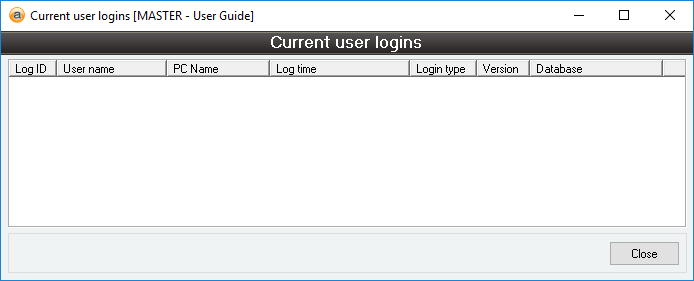
List of logins
This is the list of users logged in to the current database. If you have Administrator permissions then the list will display logged-in users from all databases connected by server. The details displayed are as follows:
- Log ID: Server-assigned login identification
- User name: The login name of the user.
- PC name: The PC name from which the user has logged in.
- Log Time: The date and time the user logged in.
- Version: The version of Accentis Client the user is running.
- Database: The name of the database the user has logged into.
Right-clicking on the login list will display a menu from which you can select actions to perform on selected users in the list.
Pop up menu
Force logout of user
Reference: menu
This menu item appears when right clicking on the login list but only if you have Administrator permissions.
When selected, this option allows you to forcibly logout all users selected in the list and close their relevant Accentis Enterprise session. If any of the selected users are in Add or Edit mode in any forms, the user will be prompted to save changes to the record before they are logged out.
Broadcast message to user
Reference: menu
This menu item appears when right clicking on the login list but only if you have Administrator permissions.
When selected, this option allows you to broadcast a message to all users selected in the list. A box will appear in which the message to be sent should be entered – this message will be displayed on the screen of the selected users along with a Reply button which will allow the user to reply directly back to the sender.