How to add a shortcut to the toolbar
Overview
There are multiple ways to add buttons to your Accentis Enterprise toolbar depending on what you are trying to add, and how you are accessing it.
- Adding directly from the toolbar.
- Adding from the menu of a search, command or form.
- Adding using the Toolbar customisation manager
For more information regarding customising your toolbar, please see How to Customise Accentis Enterprise.
Adding a button directly from the toolbar
Searches and Commands are able to be added to the toolbar directly from the toolbar itself.
- Right-click an empty space on the toolbar.
- Select Add search or command.
- Enter the identifier of the relevant search or command.
- This can be found at the top-right of the window when the search or command is open.
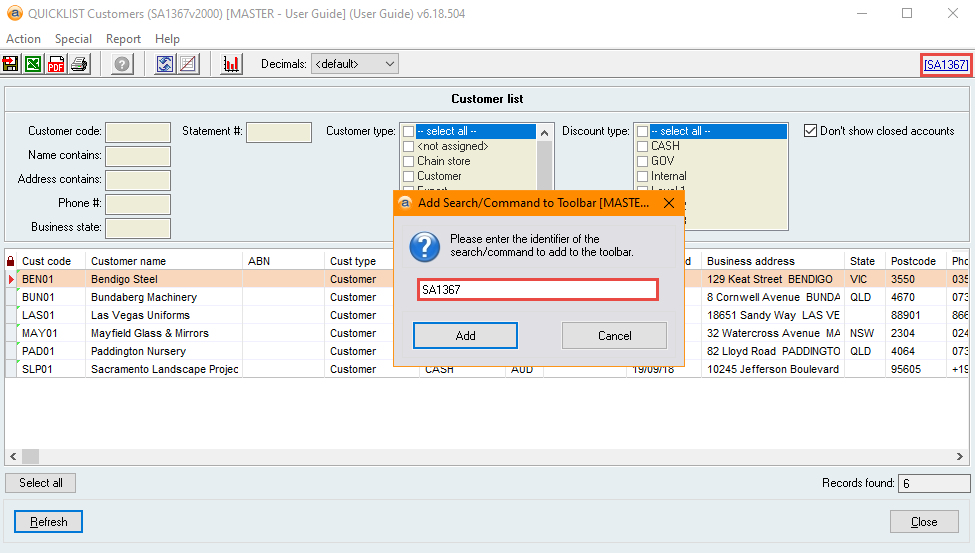
- Select Add to update the toolbar with the newly created button.
Adding from a Search, Command, or Form
Searches, Commands, and Forms are able to be added to the toolbar directly from the window itself.
- On the Search, Command, or Form, select the Special menu.
- Select the relevant option to add the button to the toolbar.
- For searches, this option will be Add this search to the toolbar.
- For commands, this option will be Add this command to the toolbar.
- For forms, this option will be Add this form to the toolbar.
Adding using the Toolbar customisation manager
For Functions, Reports, or Searches that don’t have a Special menu, you can add these to the toolbar through the Customise toolbar form.
- Navigate to User and select Customise toolbar.
- Select the relevant User or User Group whose toolbar you are wanting to modify from the List of Users / Groups.
- Select Edit.
- Highlight the relevant function, report, or search from the List of Functions / Reports and select Add.
- You may also double-click the item you want to add from the List of Users / Groups; this functions the same as using the Add button.
- Select Update to save your changes.
Did you find this article helpful?
If this article is missing information, ambiguous, or didn’t give you clear instructions, let us know and we will make it better! Please email us and quote the KB# in the top right of this article to let us know why it didn’t help you out and we will point you in the direction of additional information.
Last edit 07/10/25