ERROR exporting to Excel: The Microsoft Excel exporter was unable to start.
Quick Answer
- Microsoft Excel is not installed on the workstation, server, or remote session;
- Microsoft Excel is installed but waiting for input or busy with another process; or
- Microsoft Excel is installed but not licensed.
Overview
When exporting reports from Accentis Enterprise to Microsoft Excel, you may occasionally encounter the following error:
Error performing export
The Microsoft Excel exporter was unable to start. Please check that you have Excel installed on this PC.
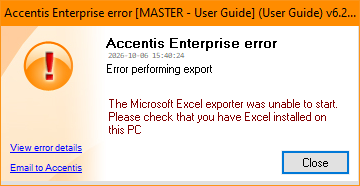
This error occurs when you attempt to export to Excel and:
- Microsoft Excel is not installed on the workstation, server, or remote session;
- Microsoft Excel is installed but waiting for input or busy with another process; or
- Microsoft Excel is installed but not licensed.
Excel is not installed
Accentis Enterprise needs to communicate with Excel to perform the export. If Excel is not installed on your computer or server, the export will fail.
To check, open Excel from your Start menu and create a new blank workbook. If Excel cannot be found or does not open, it is likely not installed.
If Excel is not installed, contact your IT Support team to have Microsoft Excel (or the Microsoft Office suite) installed and licensed for your user account.
Excel is installed but busy
This error commonly occurs when Excel is already open and requires user input or is busy performing another task.
Check whether you have any Excel workbooks open. If so, make sure Excel is not displaying any prompts, dialogs, or background processes that require attention. If you are currently editing a cell, press Enter or click another cell to finish editing before attempting the export again.
Once Excel is idle and ready to accept input, return to Accentis Enterprise and retry the export.
Excel is installed but not licensed
If Microsoft Excel opens but you are unable to create or edit data in a blank workbook, Excel may not be licensed for your user account.
To confirm, open Excel and create a new blank workbook. If Excel displays an activation, licensing, or subscription message, or prevents you from entering data, a licensing issue is likely preventing Accentis Enterprise from communicating with Excel correctly.
In this situation, contact your IT Support team and request that a valid Microsoft Excel or Microsoft Office licence be assigned or activated for your user account.
Did you find this article helpful?
If this article is missing information, ambiguous or didn’t give you clear instructions, let us know and we will make it better! Please email us and quote the KB# in the top right of this article to let us know why it didn’t help you out and we will point you in the direction of additional information.
Last edit: 07/10/2026