The Accentis Enterprise workplace
The main window
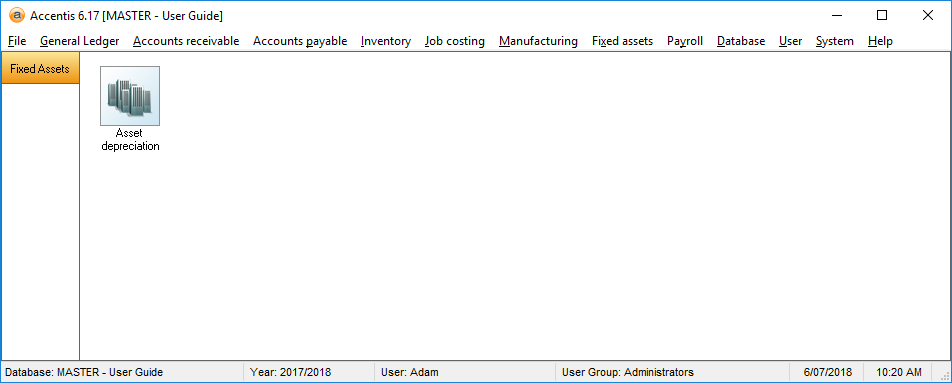
After you log in to Accentis Enterprise, you will see the main Accentis window which will look similar to the following:
Title bar
The title bar of the main window displays the database into which you are logged in. Like any other Windows program, you use the title bar to move and reposition the main window.

Main menu
Every function available within Accentis Enterprise can be accessed via the main menu. The menu system has a consistent layout with all available module headings shown across the top of the main menu.

Toolbar
The Accentis Enterprise toolbar allows quick access to certain functions. You can modify your own toolbar to include only the functions and reports that you commonly use or that may be difficult to locate quickly amongst the many other reports available. Your toolbar might be blank when you first start using Accentis Enterprise, however you can soon customise it with the functions that you require frequently.
Status bar
The status bar displays important information about your current Accentis session, such as your user name, the current database to which you are logged in, the current financial year of that database, your user name, your user group, the date and time and the currently installed client version of Accentis Enterprise.

Moving and resizing the main window
The main Accentis Enterprise window can be moved around your screen and resized any way you want. Some users prefer that Accentis Enterprise occupy the entire screen, while others prefer to maximise the available space on their desktop and only have the Accentis Enterprise main window occupy the space it needs for the menus and the toolbar.
All of the forms and windows of Accentis Enterprise are displayed outside the main window area, so this does not need to be any bigger than your toolbar.
The Accentis Enterprise main menu
The main menu of Accentis Enterprise gives you access to all of the functions and reports within the program – it is the one you see at the top of the main Accentis Enterprise window. It is always there and always ready for use.
All of the different areas or modules available within Accentis Enterprise are presented in drop-down menus which contain a vast selection of functions.
All functions within Accentis Enterprise can be located directly from one of the menus.
The Accentis Enterprise toolbar
The Accentis Enterprise toolbar provides a fast and convenient way for you to display commonly used reports and activate frequently used functions. Every user can customise their own toolbar so that it contains only those reports and functions that they want to see. All of the buttons on the tool bar can be given different colours or different pictures and they can be arranged in any order or position you like. They can also be assigned a function key such as F2 or F4 for instant access. Furthermore, button groups can be created
See the section on How to Customise Accentis Enterprise for further details about how to set up and rearrange your toolbar buttons.
 Related topics