SA3985 - Requirements analysis (current demand)
Overview
This report is an analysis of all parts that are currently committed (required) showing when they are first needed, how much is needed, and other information about the supply and demand of the parts.
This report is used to determine purchasing and manufacturing requirements.
Location
- Inventory > Report > Requirements / usage > Requirements analysis (current demand); or
- Press CTRL+SHIFT+R and type SA3985 to run the report directly.
Sample report
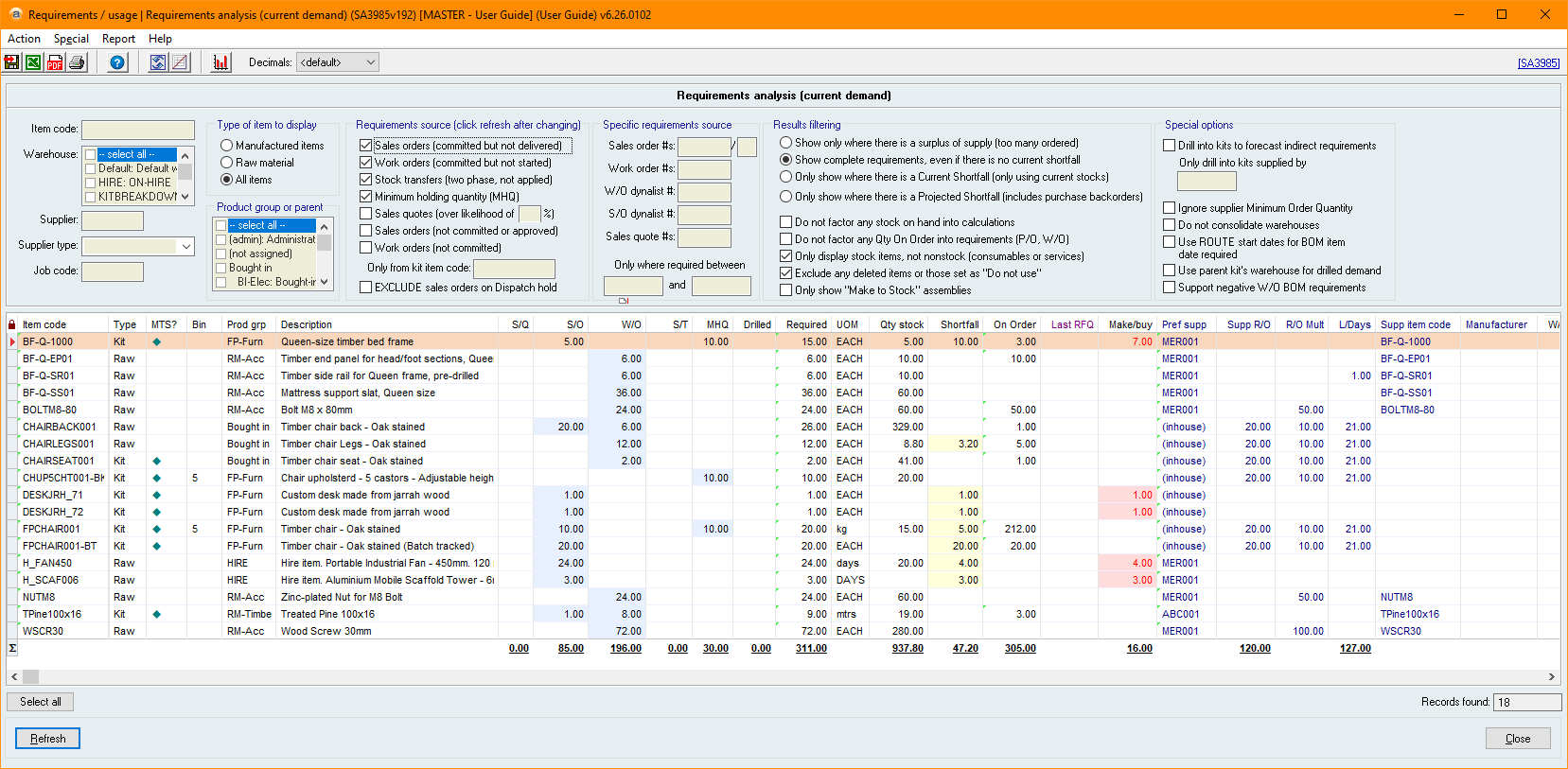
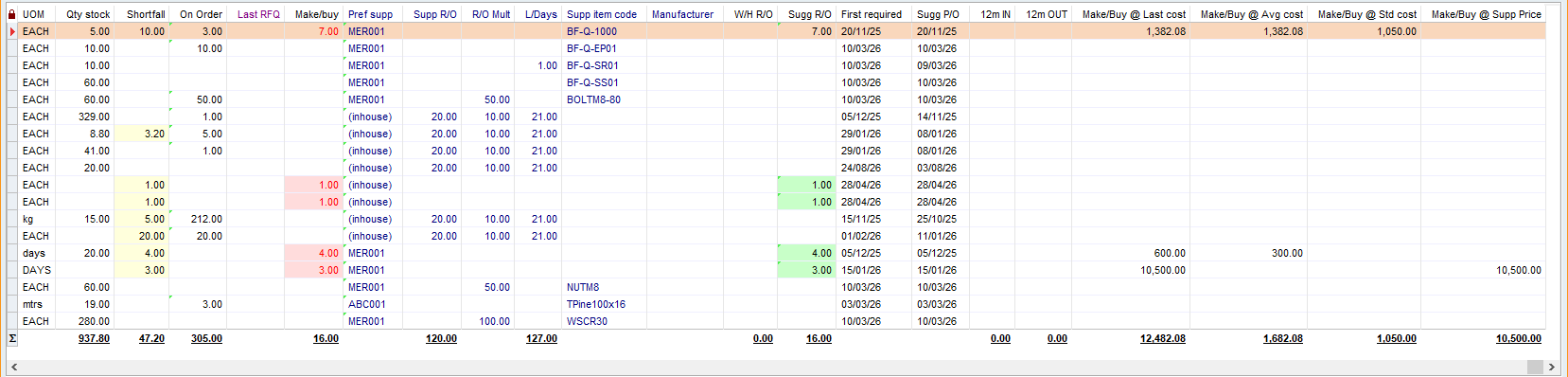
Key filters
 Item code
Limits results to items whose Item code begins with the text you enter.
Warehouse
Limits results to the Warehouse(s) you select. Only the demand, stock and on-order quantities held in those warehouses are included.
Selection of warehouses here will mean that source requirements are only extracted from the nominated warehouses, and all decisions regarding quantity in stock for requirements processing and quantities on order are also only taken from the nominated warehouses.
Take care using this option because incorrectly including or excluding e.g., a bulk store or remote branch warehouse can affect the results
Supplier
Limits results to items whose preferred supplier’s (the top ranked supplier's) Supplier code begins with the text you enter.
Items with no preferred supplier are not shown when this filter is used.
This filter can be used to limit the results to a specific supplier for the purposes of creating purchase orders.
Supplier type
Limits results to items whose preferred supplier (the top ranked supplier) has the Supplier type you select.
Items with no preferred supplier are not shown when this filter is used.
Job code
Limits demand from sales orders, work orders and sales quotes to those whose Job code begins with the text you enter.
Stock transfer and minimum holding quantity requirements are not affected by this filter.
This filter is ignored for sales quotes when Sales quote #s is entered.
Type of item to display
Limits results to the type of item you select:
- Manufactured items
- Items that are flagged as a kit item.
- Raw material
- Items that are not kits. This includes non-stock items.
- All items
- Does not limit results by item type.
Product group or parent
Limits results to items whose Product group is one of the groups you select, or whose product group sits under a selected Parent group.
Requirements source
This is a key filter and allows you to determine where to look for demand (requirements) for items. This filter allows you to target specific parts of the data to draw out a demand for inventory as follows.
Sales orders (committed but not delivered)
Includes demand from sales orders that are committed, not cancelled and not fully dispatched.
For each line the requirement is the Qty ordered less the Qty dispatched, or the undelivered quantity of any scheduled delivery. This demand is shown in the S/O column.
Work orders (committed but not started)
Includes the BOM component quantities still needed by work orders that are not complete, based on the work order’s Qty committed, less any component quantity already started. This demand is shown in the W/O column.
Stock transfers (two phase, not applied)
Includes stock transfers that have not yet been applied. The quantity is treated as demand in the transfer’s “from” warehouse, and as quantity on order in the “to” warehouse. This demand is shown in the S/T column.
Minimum holding quantity (MHQ)
Includes each item’s Minimum hold qty in each warehouse as demand, dated today. This demand is shown in the MHQ column.
Note that this is an inclusion to the total demand, which allows you to predict the stock you will need to satisfy other genuine customer or production demands, as well as retaining your safety stock.
Sales quotes (over likelihood of x %)
Includes demand from sales quotes whose current likelihood is equal to or higher than the percentage you enter. If dates or a job code are entered, only quotes within those dates and for that job are included. This demand is shown in the S/Q column.
Quotes are ignored when you enter a sales order, work order or dynalist number in the Specific requirements source section (unless you enter specific sales quote numbers).
This allows you to predict a future demand of stock. Use this with care: if ordering or production is affected by pending sales quotes that do not eventuate, you may over-order. However, you may benefit from visibility of possible future quote wins for commodity items with long lead times.
Sales orders (not committed or approved)
Also includes demand from sales orders that are not yet committed or approved. This option only has an effect when Sales orders (committed but not delivered) is also ticked, or when specific sales orders are entered.
It is not common to use this filter on a regular basis because it could lead to purchases of products for sales orders which never eventuate, however it is useful to see what ordering may need to happen if they were to be approved. Your business may have a process whereby sales orders that are not yet approved are just awaiting internal approval and are therefore just as valid as approved orders.
Work orders (not committed)
Includes component demand from work orders that have not been committed (Qty committed is 0), using the full Qty requested of the work order.
It is not common to use this filter on a regular basis because it could lead to purchases of products for work orders which never eventuate, however it is useful to see what ordering may need to happen if they were to be committed. Your business may have a process whereby work orders that are not yet committed are just awaiting internal approval and are therefore just as valid as committed orders.
Only from kit code
Limits the demand to items whose Item code begins with the text you enter, so only that kit’s own demand (and, if drilling, its components) is shown.
This filter is not an additional source, rather a restriction on the sources listed above.
EXCLUDE sales orders on Dispatch hold
Excludes demand from sales orders that are flagged as "Hold dispatches"
Specific requirements source
This special set of filters allows you to target a specific source of requirements, such as a sales order list, or a dynalist of work orders (production schedule). Any data specified in the Special requirements source will override the base requirements to the left even if they have been ticked. This feature allows you to quickly enter a specific record # without having to untick the usual requirements options.
The manner in which the specific requirements sources select data is the same as the base requirements sources and can be considered just like a narrowing down of those sources.
All specific requirements sources produce a combined restriction: all filters will restrict the final results and will not combine to produce an additive result.
Sales order #s
Limits demand to the sales order numbers you enter. Separate multiple sales orders with commas.
Demand from work orders raised for those sales orders is also included. Stock transfers, minimum holding quantities and sales quotes are not included. Quantities on order from work orders raised for other sales orders are not counted as supply.
Sales order line
Limits demand to a single line of the sales order, based on the line number.
Exactly one sales order number must be entered to use this filter.
Work order #s
Limits demand to the work order numbers you enter. Separate multiple work orders with commas.
Sales orders, sales quotes, stock transfers and minimum holding quantities are not included.
W/O dynalist #
Limits demand to the work orders in the Dynalist number(s) you enter.
S/O Dynalist #
Limits demand to the sales orders in the Dynalist number(s) you enter.
Sales quote #s
Limits demand to the sales quote numbers you enter. Separate multiple quotes with commas.
The Sales quotes (over likelihood of x %), the Only where required between dates and the Job code filter are ignored for the quotes you enter.
Sales orders, work orders, stock transfers and minimum holding quantities are not included, unless you also enter a sales order or work order number.
Only where required between X and Y
Limits demand to requirements whose date falls on or between the dates you enter. The date used depends on the source of the demand:
- Sales orders
- The scheduled delivery date, or the sales order’s Date required when there is none.
- Work orders
- The work order’s Date required, or the route scheduled start date when Use ROUTE start dates for BOM item date required is ticked.
- Stock transfers
- The transfer Date.
- Sales quotes
- The quote’s Date required.
Minimum holding quantity and forecast demand are not limited by date.
Results filtering
The results filters allow you to restrict the final requirements results based on calculations comparing how much you have in stock and how much is currently already on order.
Show only where there is a surplus of supply (too many ordered)
Only show where the quantity that is on order for the items exceeds the Shortfall. The shortfall is the quantity required less the quantity currently in stock.
Show complete requirements, even if there is no current shortfall
Show the complete requirements generated from the source data, even if there is no current shortfall. You would use this option to verify that no other filtering has excluded items from your data. This option is common in situations where you say “I am sure we needed XYZ, but it is not showing on the report”
Only show where there is a Current Shortfall (only using current stocks)
Show where there is a higher demand for stock than can be met by the current quantities in stock, but not including quantities that are on order through work orders or purchase orders. This option is used when you want a complete list of everything that is short, whether you have plans in place to fix it or not.
Only show where there is a Projected Shortfall (includes purchase backorders)
Show any item where the demand is higher than the supply for current stock plus purchase orders and work orders. This is the most common option to say “Show me where there is a problem” because it will highlight any items that have a demand which will not be fulfilled.
The following options apply additional filtering to the options above.
Do not factor any stock on hand into calculations
All calculations currently factor stock on hand into the final calculation for “Shortfall”. However, using this option prevents any current stock on hand from being taken into account. This will generally produce a larger results set and more requirements because all of the calculations will assume that the raw requirements are unable to be offset by current stocks.
The Qty stock column still shows the actual stock.
Notably, this also affects the operation of drilling into subassemblies: it will be assumed that no subassemblies exist in stock and therefore will be drilled into at every level for the full required quantity (less any quantities on purchase orders or work orders, subject to the option below) of the base requirements.
Do not factor any Qty On Order into requirements (P/O, W/O)
All final calculations currently factor the quantity on outstanding purchase orders or work orders into the final calculation for “Shortfall”. However, using this option prevents any purchase order or work order backorders from being taken into account.
This will generally produce a larger results set and more requirements because all of the calculations will assume that the base requirements are not being offset by quantities on order.
Notably, this also affects the operation of drilling into subassemblies: it will be assumed that there is no future supply of this stock and therefore will be drilled into at every level (less any quantities in stock subject to the option above) for the full required quantity of the base requirements.
Only display stock items, not nonstock (consumables or services)
Excludes items whose Type is non-stock.
Exclude any deleted items or those set as "Do not use"
Excludes items that are Pending delete or have Do not use set.
Only show "Make to Stock" assemblies
This is a results filter that will only show resulting required items that are also kits (assemblies) and which have been flagged as “Make to order” on the item’s setup tab. This option is useful to isolate production items that are needed for customers.
Special options
Drill into kits to forecast indirect requirements
This is a key option that determines whether or not demand for kits (assembly items) will result in drilling through the kit item to arrive at the raw materials that will be needed to produce that item. When used, the item itself will still be shown as a requirement in the result, as well as all of its components.
When drilling occurs, the item’s bill of materials will be used to determine the components that are required for the item. However, the “Fixed workorder quantity” will not be included (because it is now known how many work orders will be needed or produced).
When determining the quantity of each item that is used to drill at each level, the report will first examine the quantity in stock or on order (subject to the options above for Do not factor any Qty On Order into requirements (P/O, W/O) and Do not factor any stock on hand into calculations, and take only the remaining quantity to drill into components.
For example, say you have a requirement for an A that contains an assembly B.
- This report will examine the requirements of item A, deduct the current quantity in stock and on order, and then use the remaining quantity as the quantity to drill in and find out how many item B’s are needed.
- Then, when drilling into item B, the report will examine how many item B’s are in stock or on order, and then drill into the remainder to get to item C within B.
At each drilling level, the total requirement for each subassembly is analysed, and drilling is performed on the total quantity required of a subassembly based on the base requirements for all of the assemblies which contain that item.
The default work order component warehouse must be set in System > Preferences > Manufacturing, unless Use parent kit’s warehouse for drilled demand is ticked.
Only drill into kits supplied by
Limits drilling to kits whose preferred supplier’s Supplier code matches the code you enter.
This option is typically used to drill into an INHOUSE supplier (i.e., yourself) so that you do not drill into items that are marked as kit items but which you also purchase from a supplier.
Ignore supplier Minimum Order Quantity
Does not apply the supplier’s minimum order quantity or reorder multiple when calculating the Sugg R/O. Only the warehouse reorder quantity is applied.
This option is useful if you want to know how much should be ordered regardless of supplier minimums.
Do not consolidate warehouses
This option instructs the report to show results for individual warehouses. Using this option prevents warehouse quantity in stock pooling, which can result in a different suggested reorder quantity when the current quantities in stock are taken from the total of all selected warehouses.
For example, if you have a main warehouse and two branches, and one of the branches has a massive excess of stock, the report may determine that no stock needs to be ordered or made for any warehouse. If, however, your warehouses are treated separately such that you cannot readily transfer stock between them then this option will be important so that you ensure isolation of warehouse quantities.
Use ROUTE start dates for BOM item date required
Uses the scheduled start date of the route that uses each component as the date the component is required for work orders, instead of the work order’s Date required. Where a component has no route start date, the earliest route start date of the work order is used, then the work order’s Date required.
This affects the First required and Sugg P/O columns, and the date range filter.
Use parent kit's warehouse for drilled demand
When there is demand for a kit item that has subassemblies, and the Drill into kits to forecast indirect requirements filter is enabled, the warehouse that traditionally registers the demand for each drilled component is the Component warehouse for its corresponding parent kit, because that's where the components would be drawn from by default if a work order was to be created.
However, with this filter enabled, the drilled component demand is placed in the warehouse of the parent kit’s requirement.
If the demand for the kit was generated because the kit was sitting on a sales order, then it will be the sales order Warehouse. But, if the demand for the kit was because that kit was a component of an existing work order in the system, then the parent kit's warehouse is effectively the Stocking warehouse of the kit instead of the component warehouse.
This option is used when you want to see what the requirements would be in a single warehouse without taking into account stocks that may be in separate component warehouses.
Support negative W/O BOM requirements
Includes work order components even where more has been started than the work order requires (a negative requirement), and allows items with a negative Required quantity to be shown when using Show complete requirements, even if there is no current shortfall.
You may have bills of materials that consume a negative amount of a component. For example, a kit may swap an existing part and effectively 'recover' parts. By default, this report does not mathematically take into account any demand less than 0.
With this filter enabled, it does support negative BOM requirements, meaning you could technically end up with a 'supply'.
Report columns
Item code
The Item code of the item.
W/H
The Warehouse code. Only visible when Do not consolidate warehouses is ticked.
Type
The type of item:
- Kit
- A manufactured item (kit).
- Raw
- A stocked item that is not a kit.
- N/S
- A non-stock item.
MTS?
A diamond symbol indicates the item is a “Make to Stock” assembly: a kit that is not flagged as Make to order.
This is useful to see whether or not the item should be made in bulk (likely using the MHQ) or individually for each order.
Bin
The Bin # of the item in the selected warehouse(s). If there is more than one, the highest alphabetically is shown.
Prod grp
The Product group code of the item.
Description
The Description of the item.
S/Q
Demand produced from sales quote lines, subject to filters.
S/O
Demand produced from sales order lines, subject to filters.
Generally only sales orders that are committed will be shown and the quantity will be the quantity that has not yet been delivered.
W/O
Demand produced from components of a work order that have not yet been consumed, subject to filters.
A part on a work order is considered to be “not consumed” if the “Qty used” on the Kit list tab of the work order is less than the “Qty required” for that part.
S/T
Demand produced from stock transfer lines that have not yet been applied, subject to filters.
MHQ
Demand produced from the minimum holding quantity for an item, subject to filters.
Note that the MHQ will still be included even if this option is not ticked, if warehouse quantities are being consolidated and there is any kind of demand for the item. This is to ensure that item demand does not drain MHQ.
FCast
The quantity required by an item forecast. Only visible when a forecast has been applied to the report.
Drilled
The quantity required indirectly, as a component of kits that are short. Zero unless Drill into kits to forecast indirect requirements is ticked.
Required
The total quantity required before stock and orders are considered. This is the sum of S/Q, S/O, W/O, S/T, MHQ, FCast and Drilled.
This is a hyperlink which will pop up a detailed report showing where the requirements have been drawn from including the originating source, and any subassembly drill levels.
UOM
Unit of measure of the item, relative to all of the quantities shown.
Qty stock
Total quantity in stock of the item in either the warehouse shown, or all warehouses selected depending on the filter Do not consolidate warehouses. This quantity does not take into account commitments to orders: it is the actual quantity in stock.
Shortfall
A calculation showing the shortfall between the Required and Qty stock. This is the first quantity that will show you where there is possibly a supply issue.
On order
The quantity of the item on order from purchase orders and work orders, plus incoming stock transfers when these are included. Negative quantities are shown as zero.
Last RFQ
The highest purchase order number of any open request for quote that includes the item.
Make/buy
A calculation of how many items the report believes you should make or buy. This is a key figure of the report and is equal to the Shortfall less On order. This will only ever be a positive quantity.
Pref supp
The preferred (#1 rank) supplier for the item.
Supp R/O
The supplier’s reorder quantity (shown on the supplier form as Minimum order quantity).
R/O mult
Supplier’s reorder multiple. This is important to know in case a supplier insists that goods must be purchase in, say, lots of 100.
L/Days
The preferred supplier’s Lead time for the item, in days.
Supp item code
Preferred supplier’s item code for this part.
Manufacturer
The Manufacturer of the item, as recorded against the preferred supplier.
W/H R/O
The Reorder qty set for the item in the selected warehouse(s). This is added together when more than one warehouse is included.
Sugg R/O
The suggested reorder quantity. This is 0 when Make/buy is 0.
When Make/buy is above 0, it is the larger of Make/buy, Supp R/O and W/H R/O. It is then rounded up to a multiple of R/O Mult.
Supp R/O and R/O Mult are not applied when Ignore supplier Minimum Order Quantity is ticked. Supp R/O is also not applied when the preferred supplier has no quantity recorded for the item.
First required
The earliest date the item is required, across all of the demand sources. Minimum holding quantity demand is dated today.
This is the earliest date that the item is required based on the base requirements (even if the quantity is the result of drilling into a kit item from base requirements). The date shown here will depend on the source of the requirements as follows:
Sales order
If the sales order line from which the requirement is drawn has a delivery schedule, then the date of each delivery that has not been fulfilled will be used. This will technically result in multiple individual requirements but will finally be consolidated into a single item. However, if the filter Only where required between X and Y is set, the individual sales order schedule lines may be filtered out producing only the remaining quantity that is required between the dates.
Work order
If the filter Use ROUTE start dates for BOM item date required has been ticked, then the date required will use the route date from the route that is linked to the work order component on the base item’s Bill of Materials management. For example, if a work order contains a component A, and in the bill of materials form (on the Item form) for kit item shows that this component is linked to a specific route code, then the date will be drawn from that linked route code. If the component does not have a direct link to a route, then the earliest date from all routes will be used as the date required for the item.
If the filter Use ROUTE start dates for BOM item date required has not been ticked, then the date will be the work order’s Date required.
Sugg P/O
The suggested date to place the order: First required less the preferred supplier’s lead time (L/Days). Blank when there is no First required date.
12m IN
The total stock transaction quantity for this item for all stock transactions typically classified as an “IN” transaction, in the last 12 months. See SA2356 and the column Stock change.
12m OUT
The total stock transaction quantity for this item for all stock transactions typically classified as an “OUT” transaction, in the last 12 months. See SA2356 and the column Stock change.
Make/Buy @ Last cost
The Make/buy quantity multiplied by the item’s Last cost.
Make/Buy @ Avg cost
The Make/buy quantity multiplied by the item’s Average cost.
Make/Buy @ Std cost
The Make/buy quantity multiplied by the item’s Standard cost.
Make/Buy @ Supp price
The Make/buy quantity multiplied by the preferred supplier’s Price per unit for the item.
Special actions you can take with data on this report
- Highlight one or more lines and use the Action menu to
- Create work orders
- Create purchase orders
- Transfer stock
Last edit: 29/10/2026