How do I refund a customer a credit that is owed to them?
Quick Answer
- Create a negative receipt directly to the bank account the refund payment will be made from; or
- Create a negative receipt to a clearing account, then create a manual payment from the bank account with the clearing account as an allocation account.
Overview
You may find that you owe a customer a credit (represented as an invoice with a negative value), and you need to provide them with a refund. This could be due to, for example, items being returned, an overpayment by a customer, or a prepaid order being cancelled.
Within Accentis there are two methods to perform a refund that both achieve the same result, but with their own benefits and drawbacks. Which method you use depends entirely on which you choose, and which suits your existing processes more accurately.
You can either:
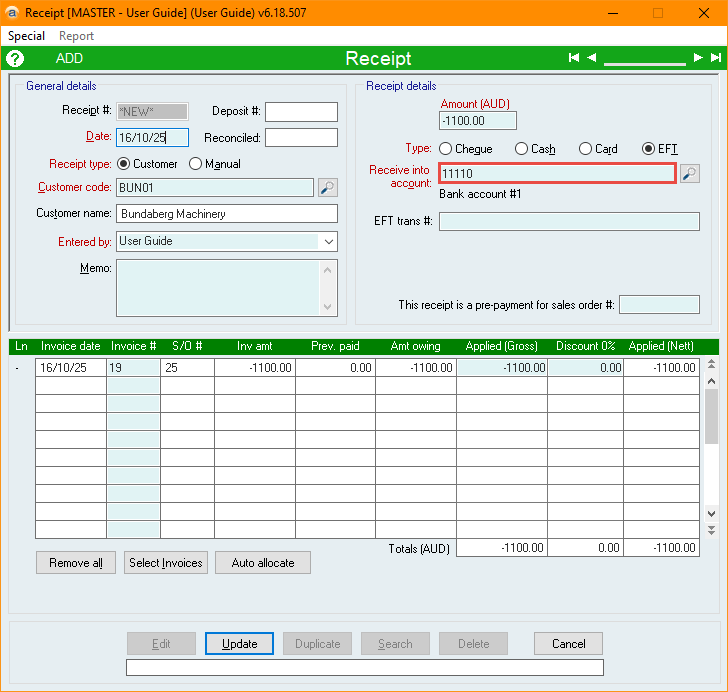
- Create a negative receipt directly to the bank account the refund payment will be made from.
- Create a negative receipt to a clearing account, then create a manual payment from the bank account with the clearing account as an allocation account.
Creating a negative receipt to the bank account
Potential drawbacks of this method
- You cannot create an ABA file directly from a negative receipt, so you need to manually go to your bank site and process the payment.
- The transaction will appear as a negative receipt on your Account reconciliation, as opposed to a positive payment.
Procedure
- Navigate to Account receivable > Sales invoice and fetch the relevant credit invoice.
- Press CTRL + R to create a Receipt for the current invoice.
- Alternatively, navigate to the Action menu and select Create Receipt for this Invoice.
- Ensure the Receive into account…field is set to the bank account that the money will be drawn from when processing the payment (the Type is not relevant).
- Select Update.
Creating a negative receipt to a clearing account
Potential drawbacks of this method
- This process requires creating both a receipt and a payment.
- The payment is not directly linked to the receipt, so comments are required to indicate they are related.
Procedure
- Navigate to Account receivable > Sales invoice and fetch the relevant credit invoice.
- Press CTRL + R to create a Receipt for the current invoice.
- Alternatively, navigate to the Action menu and select Create Receipt for this Invoice.
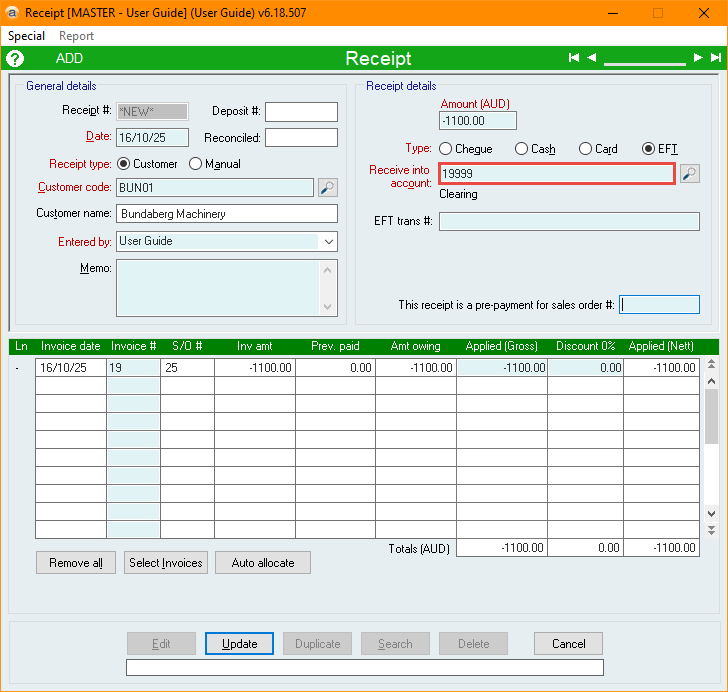
- Set the Receive into account… to a clearing account and select Update (any clearing account will work; the Type is not relevant.)
- From the toolbar, navigate to Accounts payable > Payment and select New.
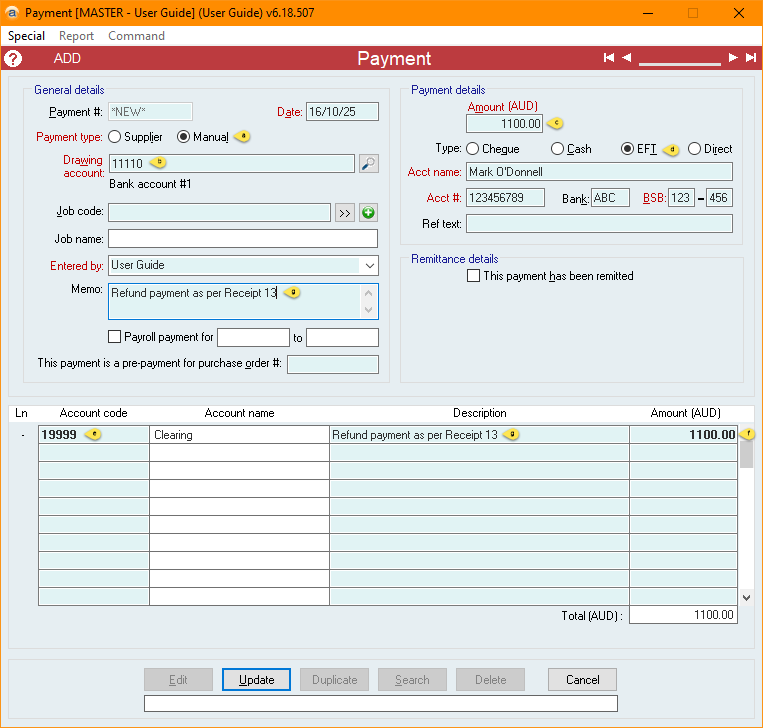
- Enter the details for the Payment as below:
- Set the Payment type to Manual.
- Set the Drawing account to the bank account that the money will be drawn from when processing the payment.
- Set the Payment Amount to the total amount of the refund (this will be the positive value of the Amount field from the Receipt).
- Set the Type to the method of payment for the refund and enter the necessary details of the payment (ABA files can only be generated if the type is set to EFT).
- In the Account code column, enter the Account code for the clearing account (used on the receipt).
- In the Amount column, enter the total amount of the refund.
- Make reference to the Receipt number in the Memo field and Description column.
- Select Update.
Did you find this article helpful?
If this article is missing information, ambiguous or didn’t give you clear instructions, let us know and we will make it better! Please email us and quote the KB# in the top right of this article to let us know why it didn’t help you out and we will point you in the direction of additional information.
Last edit: 28/09/2026