How to hide items from a Sales quotation, Sales order, or Sales invoice
Quick Answer
Use line grouping or comment items with custom reports.
Overview
Depending on your sales processes and inventory, you may encounter a time when you want to hide items on your Sales quotations, orders, or invoices.
This could be necessary if, for example, you are advertising a deal that includes two items. You would like for this deal to be displayed on the invoice as one line with one price. However, you still need both of those items to be taken out of stock.
The solution is to include both items on the invoice as hidden items on a customised report. There are a few ways to achieve this, but the main principles are the same.
Solution 1: Use line grouping to indicate visible and not visible lines
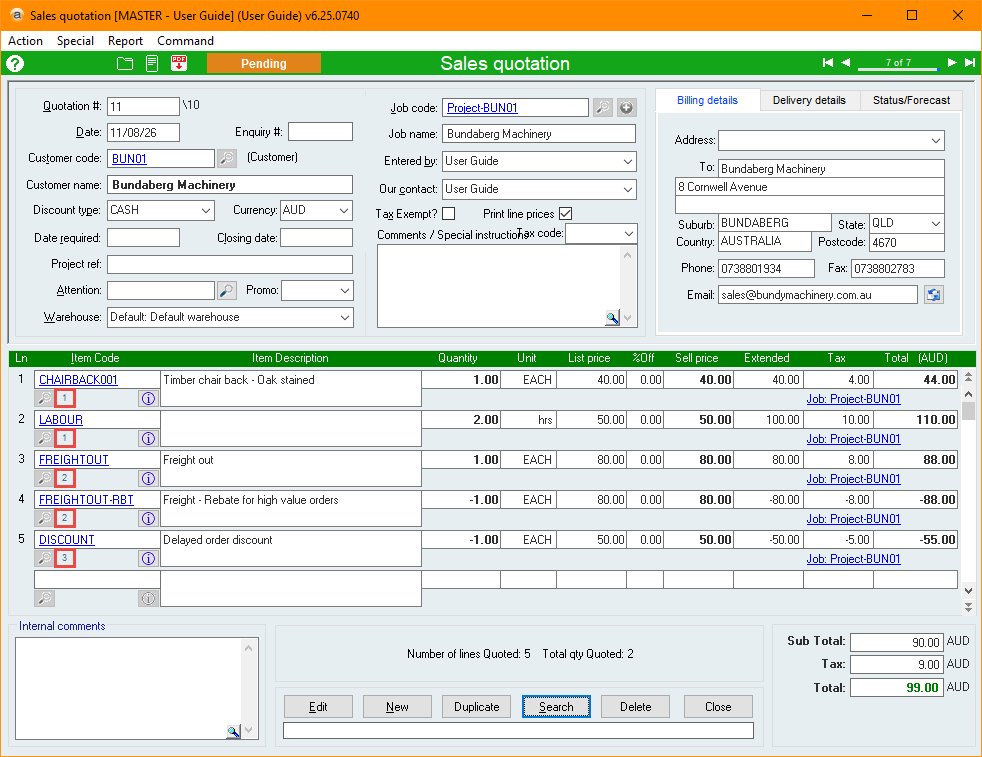
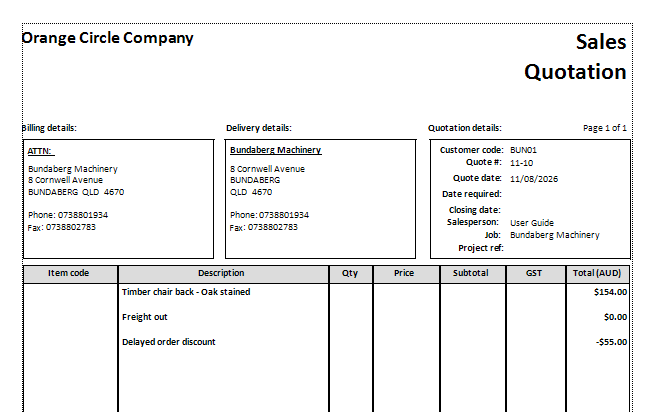
The lines of Sales quotations, orders, and invoices can be assigned to Groups. If multiple lines are grouped together (i.e. assigned to the same group number), reports can be setup so that only the top line of the group is shown. The price displayed can be a combination of the top line’s price, plus the price of the lines in the group that aren’t shown.
For information regarding how to use and assign line grouping, please see Sales quotation, Sales order and Sales invoice line grouping.
Sales quotation form with grouped lines
Sales quotation report with grouped lines hidden
Solution 2: Use comment lines as separators
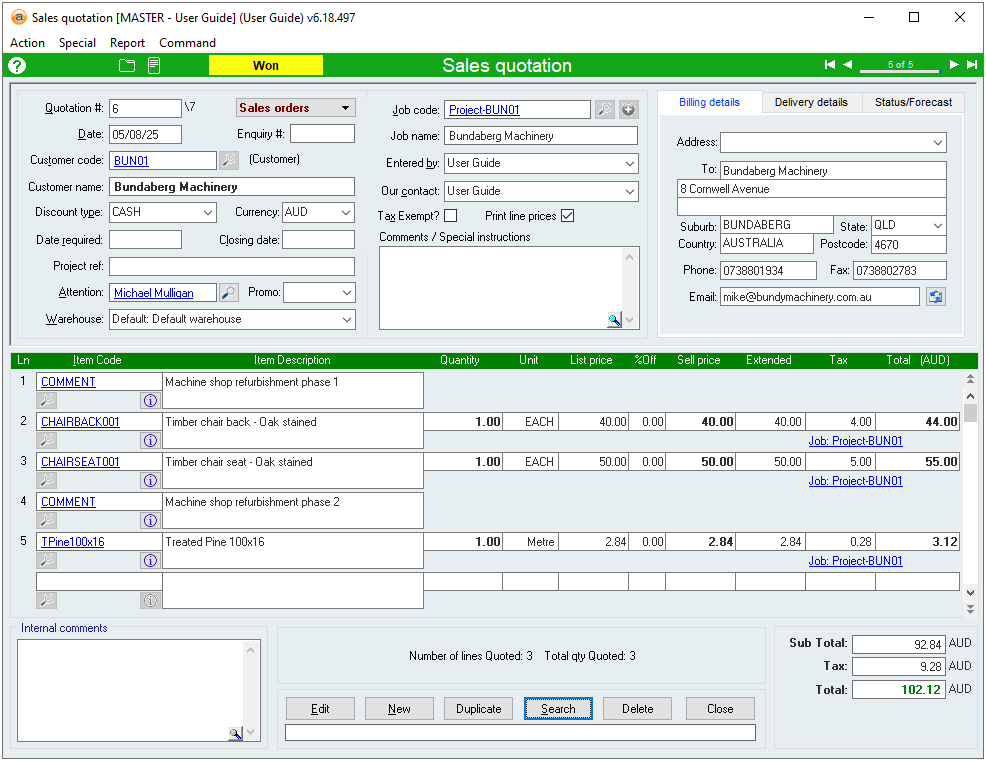
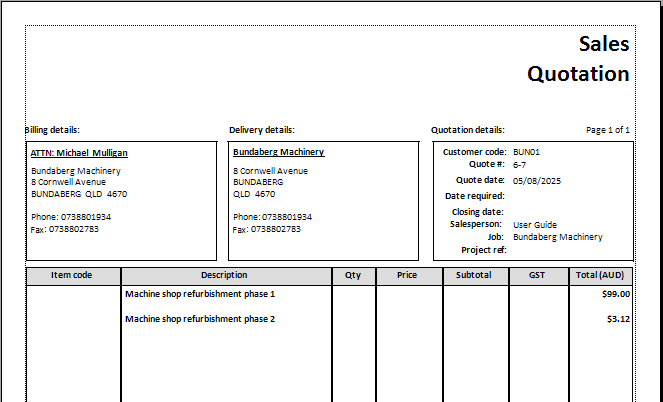
A comment line is a line with a Comment item. You can use comment lines to automatically separate the lines into sections. You can then use a report that hides non-comment items so only the comment lines are displayed with the total price of their section.
This can be easier to manage than line grouping because you don’t need to assign line groups. However, using this method can cause issues if you want to use comment items throughout the same section.
Additionally, as comment items don’t get dispatched, they can cause confusion when a Dispatch report is generated.
How to add comment lines to a Sales quotation, order or invoice
- Enter a comment item code into a new line. This will act as a section heading.
- If you are editing an existing form, you can select the top line of a section and press CTRL + to insert a blank line above it.
- In the comment item’s description, enter what you would like to appear on the generated report.
- Enter any item codes for this section into new lines below the comment line.
- Repeat the process of adding comment lines and relevant item codes for any additional sections.
Sales quotation form with comment lines
Sales quotation report with non-comment lines hidden
Additional Notes
In all cases, the report that is generated is the one that hides the lines and tallies up the total. This means that you can always see all items from within the sales forms, and they are only hidden once the report is generated.
Did you find this article helpful?
If this article is missing information, ambiguous or didn’t give you clear instructions, let us know and we will make it better! Please email us and quote the KB# in the top right of this article to let us know why it didn’t help you out and we will point you in the direction of additional information.
Last edit: 11/08/2026