How to automatically send Sales Invoices to multiple contacts
Overview
When you email a Sales Invoice to a customer, the receiving email address defaults to the email address that is listed on the General details tab of the Customer form:
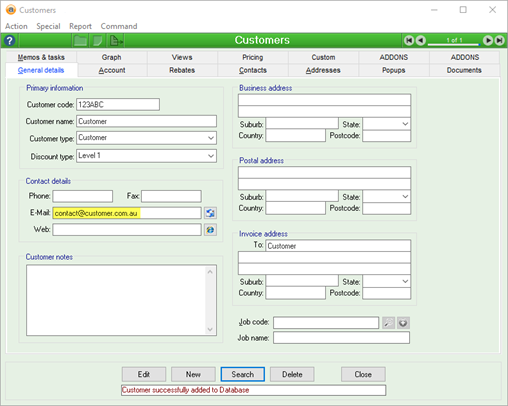
So, what do you do if the main contact for your customer is not the contact to whom you need to send your Sales Invoice?
You can override this default and change the email to whom the invoice is sent without changing the General details of your customer.
Steps
- Open the Customer form and go to the Contacts tab.
- If you don’t yet have any contacts linked to this Customer, you can either create a new contact or link an existing one.
- On the contact to whom you would like to send your invoice, right-click the Contacts column. You don’t need to be in Edit mode to do this
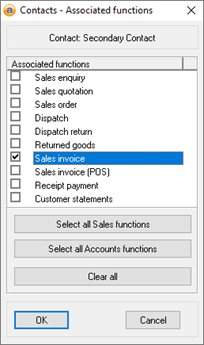
- The popup will look like this:
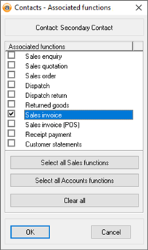
- Tick Sales invoice and hit OK. The chosen contact will now look like this:
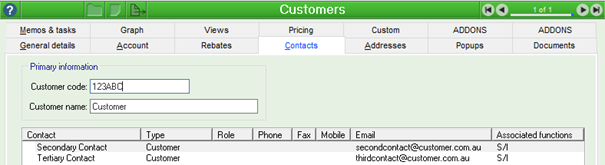
Now, when you send Sales Invoices to this Customer, all contacts with the S/I Associated function will receive it.
Did you find this article helpful?
If this article is missing information, ambiguous, or didn’t give you clear instructions, let us know and we will make it better! Please email us and quote the KB# in the top right of this article to let us know why it didn’t help you out and we will point you in the direction of additional information.
Last edit: 05/12/23