How do I set a supplier order / invoice account entry line to GST free?
Quick Answer
Create a non-stock item with a GST free tax code OR change the tax code manually.
Overview
If you use direct account entry notation in your purchase order and supplier invoice lines and you want some accounts to be GST free by default, then you'll need to create a non-stock item code.
This is because accounts codes themselves don't have a tax treatment and so are unable to have tax codes assigned.
Depending on your processes, you can choose to either create a non-stock item that corresponds to a specific account or create a generic non-stock item that can be used for any account.
If you don't need to set the tax code by default, then you can also use direct account entry notation and change the tax code manually.
Creating an account specific non-stock item
- From the Inventory form, create a new non-stock item, making sure to set a GST free Tax code.
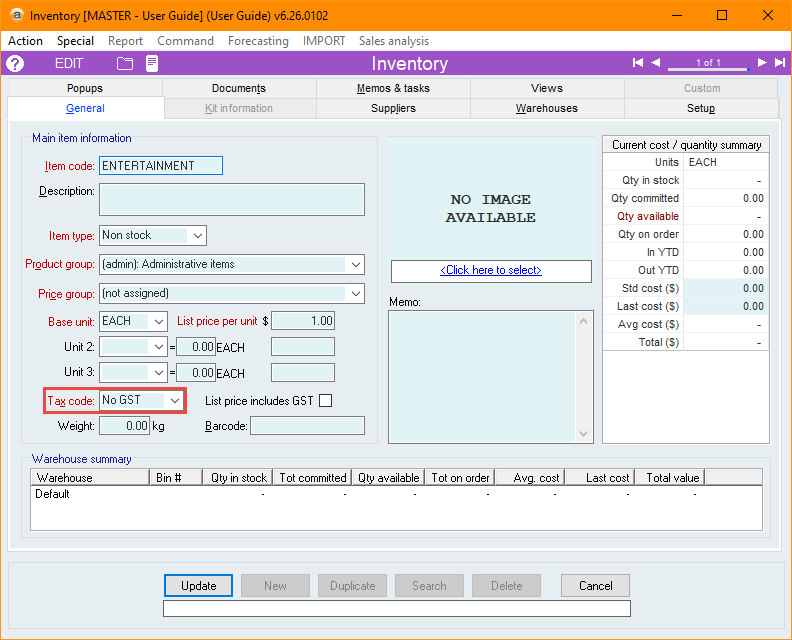
- Set the item code to something that is easily identifiable. For example, if you are creating an item that will be used for entry into an Entertainment-related expense account, you could call it "ENTERTAINMENT".
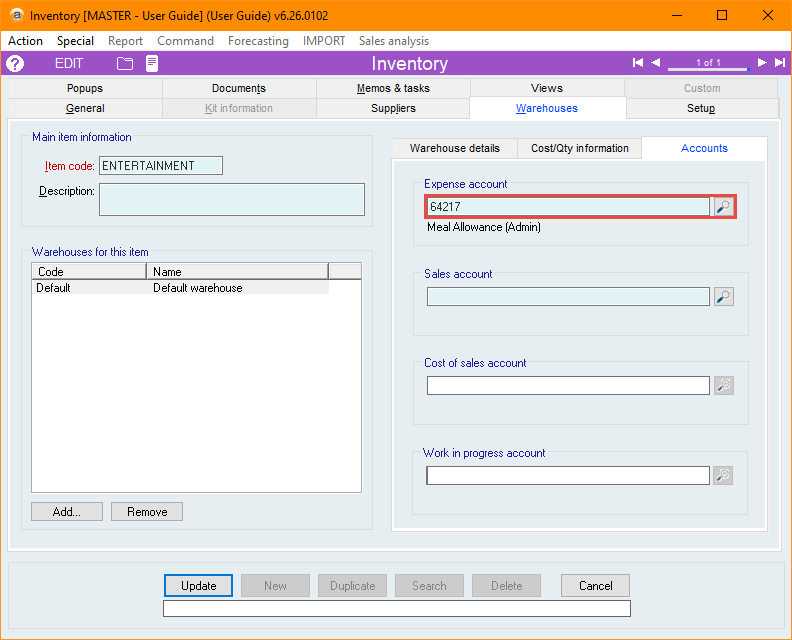
- On the Warehouses tab, set the Stock / Expense account to the account code that you want to default to GST free.
Creating a generic tax-free non-stock item
- From the Inventory form, create a new non-stock item, making sure to set a GST free Tax code.
- Set the item code to something that is easily identifiable. For example, "GL_TAXFREE".
- Instead of setting an Expense account on the Warehouse tab, Leave the Expense account blank.
- This causes the purchase order / supplier invoice to error if no account is specified when this item is used.
Setting the tax code manually
- On the Sales invoice, enter your account code using direct account entry notation (.ACCOUNT format).
- Select the Supplier invoice line details button for the line.

- Change the Tax code field to one that is GST free.
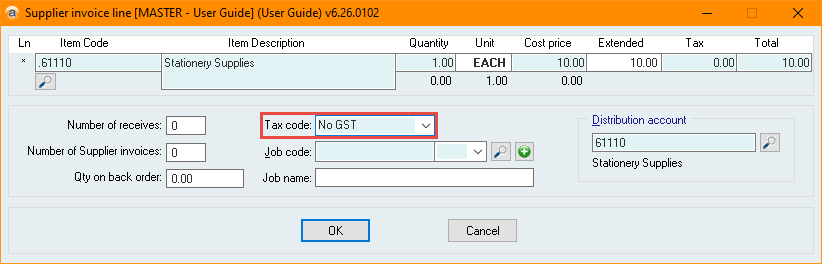
- Select OK to close the line details window, make any additional changes you need to the supplier invoice, and select Update.
Did you find this article helpful?
If this article is missing information, ambiguous or didn’t give you clear instructions, let us know and we will make it better! Please email us and quote the KB# in the top right of this article to let us know why it didn’t help you out and we will point you in the direction of additional information.
Last edit: 18/08/2026