How to send all Purchase order emails to another address
Overview
Accentis Enterprise allows you to assign a user to each function so that every time an email is sent for that function, the user is also emailed. When this happens, Accentis takes the user’s Email address and adds it to the BCC field of the outgoing email.
You can only assign one user to each function, but because you are assigning a user and not an email address, you can include multiple recipients by selecting a user with all the relevant addresses in their Email address field.
Adding a BCC user to the Purchase order function
- Run the Functions list report by pressing CTRL-SHIFT-R and entering SA1833.
- Enter Purchase order in the Function name contains filter and refresh the search.
- Select the hyperlink in the Emails from BCC user column.
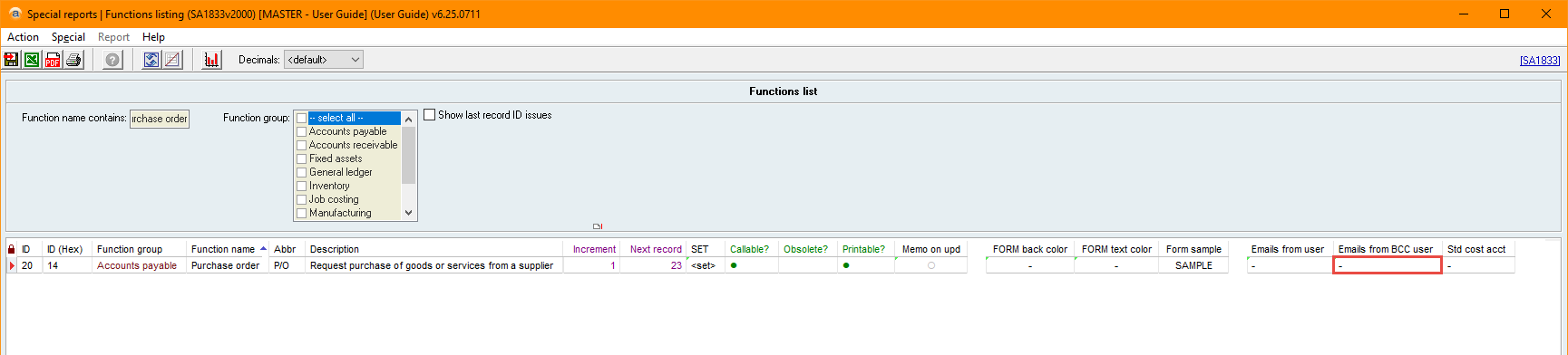
- Select the user you wish to BCC from the dropdown list and select Run.
Now, when you send a purchase order email, this user’s email address will be included as a BCC.
Including multiple email addresses
If you need to include multiple email addresses for the same function, you can enter multiple email addresses for your selected user. These addresses will need to be entered into the user’s Email address field as normal, but separated with a semicolon. For example:
“[email protected]; [email protected]; [email protected]”
To make this process easier, you can choose to create a user specifically for this purpose. For example, a user called EMAIL_PO_BCC, to which you add all the necessary email addresses. This way, you don’t need to make any unnecessary changes to your existing users.
Did you find this article helpful?
If this article is missing information, ambiguous or didn’t give you clear instructions, let us know and we will make it better! Please email us and quote the KB# in the top right of this article to let us know why it didn’t help you out and we will point you in the direction of additional information.
Last edit: 01/04/2026