All about one-off items
Contents
Creating a new one-off item template
Using the Create one-off item… button
Using the CTRL-O keyboard shortcut
Worked example: Creating a new one-off item code on a Sales order
Overview
One-off items are unique inventory items that allow you to easily group and track non-standard inventory. This document will outline all you need to know about creating and using one-off items within Accentis Enterprise.
The Problem
Often you will have inventory that you need to buy, make, or track that is not the exact same as a current stock item. This is because it is a specially bought-in or manufactured item for which an item code doesn’t exist.
Manufactured items can vary between being almost identical to a previously made item, and being completely different. They may also be assemblies that you are quoting which are not yet ready to become a real stock item for the purposes of selling or quoting to others.
Keep in mind that with inventory tracking, unless you are using serial tracking, it is essential that any two items with the same code are identical (i.e. able to be bought, sold, or used interchangeably).
The Solution
A one-off item is one with a unique code that Accentis can create from a one-off item template. Because inventory items with the same item code must be interchangeable, and item codes cannot be repeated, using one-off items prevents the need for unnecessarily long or complex item codes for unique items.
For example, if you manufacture a toolbox which has a variable length, instead of creating an item code for each variation, you could create a one-off item template for the toolbox and generate one-off items as required. Once created, you can edit the one-off item’s bill of materials (BOM) and tailor it to suit the exact length.
Importantly, you don’t need to worry that your inventory management will become polluted by potentially hundreds or thousands of unique items. One-off items are easily isolated from your normal inventory management routines.
Facts about one-off items
One-off items can:
- Represent special builds for customers.
- Be modified just like a normal stock item (i.e. They can be bought, built, moved, and sold).
- Be turned into regular stock items just by ticking a box.
- Be easily isolated on many reports (e.g. Item QUICKLIST).
- Be used as a handy storage of something you have built before and may want to reuse.
- Allow you to have transient and special item codes without polluting your inventory.
The one-off item template
The idea behind a one-off item is that an item code can be instantly created with minimal input. To do this, we use one-off item templates.
A one-off item template is an inventory item that has pre-filled information. The item code of the template is used as a prefix when generating a new item code. All the other information from the template is copied directly into the new one-off item.
For example, if your one-off template is called “TMP”, then when you create a one-off item from it, the new item code that will be generated is “TMP12345” where 12345 is the next number sequentially.
Creating a new one-off item template
You create one-off item templates by first creating a new inventory record and then selecting the This is a One-off item template checkbox from the item's Setup tab.
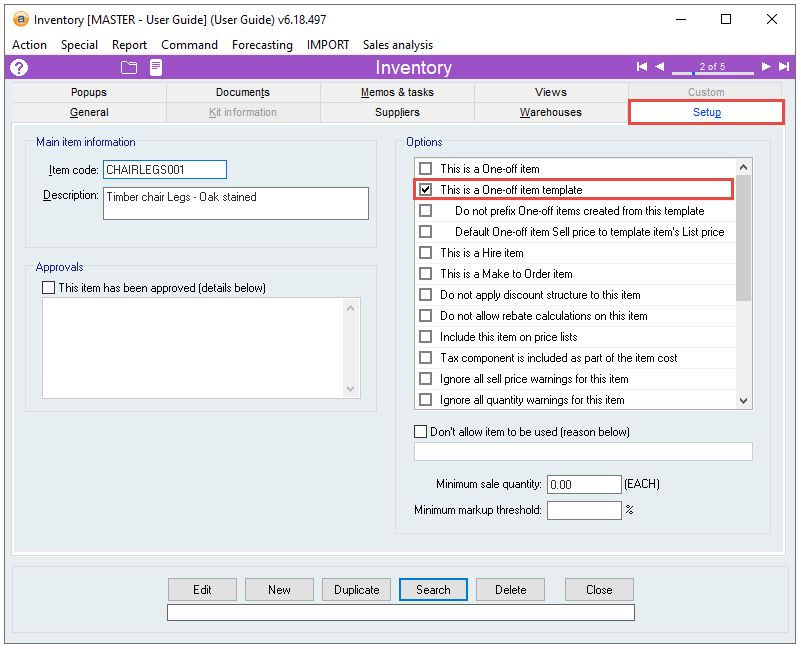
This now becomes one of the templates that you can use to create new one-off items. It acts as a boilerplate for all one-off items created from this template.
Naming the one-off item template
The list of one-off item templates (displayed on the Item one-off entry form) will now include the item you have created.
The name that is shown in the one-off item template list will be taken from the first line of your one-off item template’s description. For example, if the description of your one-off item is:
Bed frames
Custom bed frame
Then the text used to display in the one-off item list will be Bed frames.
All other text after the first line will then become the description of the new one-off item that is created from this template. Using the example above, when a new one-off item is created, the default description will be Custom bed frame.
Creating a new one-off item
There are four main ways to create a one-off item from within another form. Which options are available depend on where you are in Accentis.
Using the Action menu
One-off items can be created using the Create One-off item option in the Action menu of the Inventory form.
Using the Create one-off item… button
One-off items can be created using the Create One-off item button on the below forms:
On the Work order form, this button will appear as a + icon next to the Kit code field.
Using the CTRL-O keyboard shortcut
One-off items can be created using the CTRL-O keyboard shortcut in relevant fields on the below forms:
- Inventory form (anywhere on the form)
- Work order form (in the Kit code field)
- Purchase order form (in the Item Code fields)
- Sales quotation form (in the Item Code fields)
- Sales order form (in the Item code fields)
- Repair form (in the Item code fields in the Parts used tab)
- Stock assignment form (in the Item code fields)
Using Right-click
One-off items can be created using the Add/Edit one off item option when right-clicking in relevant fields on the below forms:
- Work order form (in the Kit code field)
- Purchase order form (in the Item Code fields)
- Sales quotation form (in the Item Code fields)
- Sales order form (in the Item code fields)
Worked example: Creating a new one-off item code on a Sales order
One-off items do not have to be created before you create a new Sales quote or order – you can access the Item one-off entry form from within your Sales quote or order as follows:
- Right-click in the Item code field, and select Add/Edit one off item, or press CTRL+O.
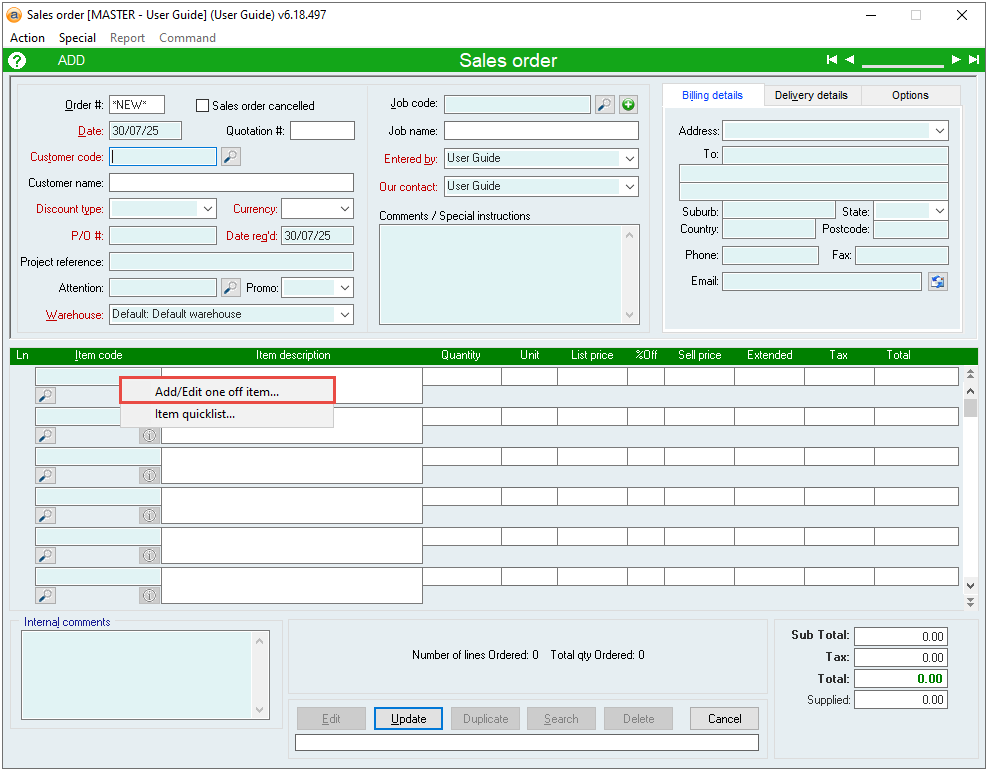
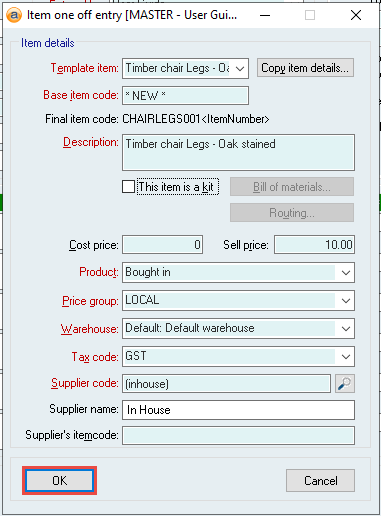
- You will now see the Item one-off entry form.
- Pick the desired template in the Template item field, make any necessary modifications, and then click OK.
- You will now see a brand-new one-off item code within your Sales quote or order.
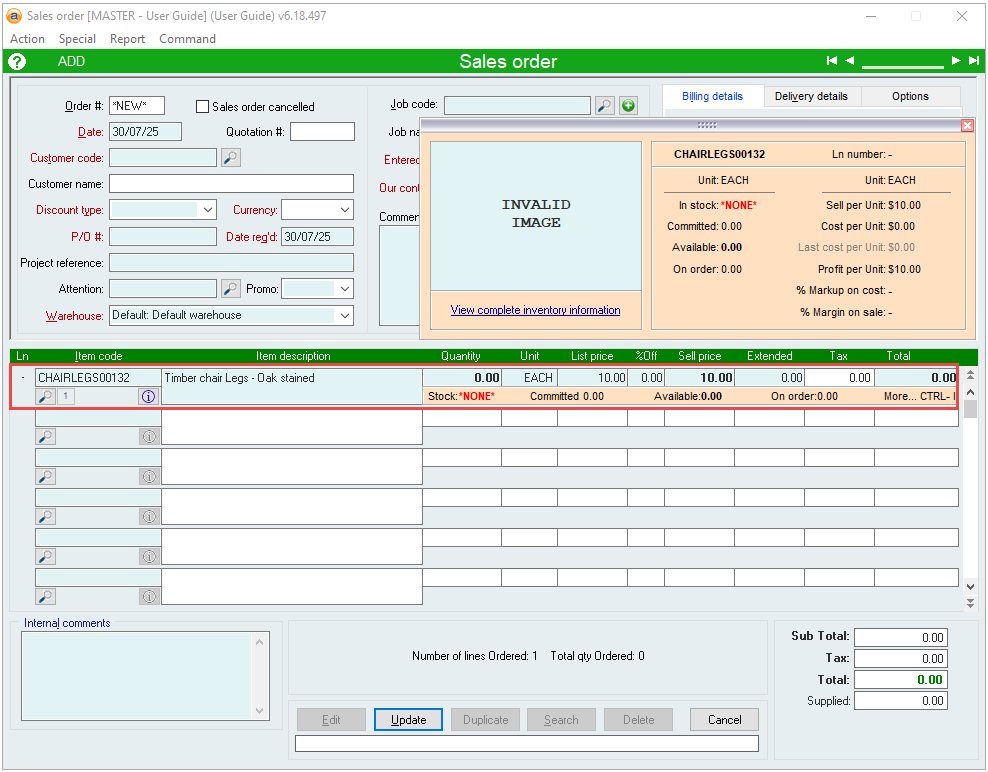
Using one-off items
One-off items that are kits
Recalculating cost price and sell price
When you modify the Bill of materials when creating a new one-off item (on the Item one-off entry form), you can choose whether the cost and sell prices are automatically recalculated based on the new, modified Bill of materials.
Depending on your system preferences, this recalculation may happen automatically.
If you would like more information about when this happens, please see How is the sell price of a one-off item calculated?
Using prefix items
When creating a one-off item, if you have multiple variations for specific kit components that you need to select from, you may find it useful to include a prefix item in the one-off template’s Bill of materials.
A prefix item acts purely as a placeholder to speed up the process of searching for kit components, and to avoid errors by indicating that a selection is required.
For example, say you produce an item that has multiple variations with different powder coat colours, and the item codes of all your powder coat colours begin with “PC”. You could create a powder coat prefix item that has “PC” as the item code, and “Press F3 to select your powder coat colour” as the description.
F3 displays the item quicklist, so using this method when selecting the item in the Bill of materials will ensure that only the item codes for your powder coat colours are shown.
Things to avoid
Creating too many templates
There might be a temptation to create a large collection of one-off item templates. Keep in mind that when creating a one-off item, the user will need to select one of these templates, and if there are many of them then it increases the chances that the wrong one will be selected.
Using non-specific templates
There might also be a temptation to create fewer and less specific templates. The danger of this however is that more fields will need to be modified when creating one-off items. This causes the process to take longer, and there is a higher risk that the wrong data will be entered.
If there are multiple broad templates, then there is also a chance of overlap between them. Because the one-off item’s item code is automatically generated based on the template’s item code, having overlapping templates can cause similar one-off items to have significantly different item codes. Searching for these items will become more difficult as you can no longer use the item code field to filter the results.
One solution is to make sure your templates are specific and named accurately. Remember, the first line of the template item’s description is what appears as the template name when creating a one-off item.
Re-using one-off items
Because one-off items are designed to be created as needed, they don’t follow many of the normal processes that regular inventory items would (e.g. minimum hold quantities and supplier negotiations). While re-using one-off item codes is technically possible, it creates confusion between regular stock items (that have gone through the correct processes) and one-off items (that have not).
Last edit: 25/02/2026