How is the sell price of a one-off item calculated?
Quick Answer
Based on it's template, it's bill of materials, or set manually.
Overview
Within Accentis Enterprise, the sell price of a one-off item can be set to the item’s template, set to the item’s Bill of materials, or set manually.
This document outlines what affects the sell price, and the options you have available to you to change how they are calculated by default.
How sell prices are calculated
Sell price based on the one-off template
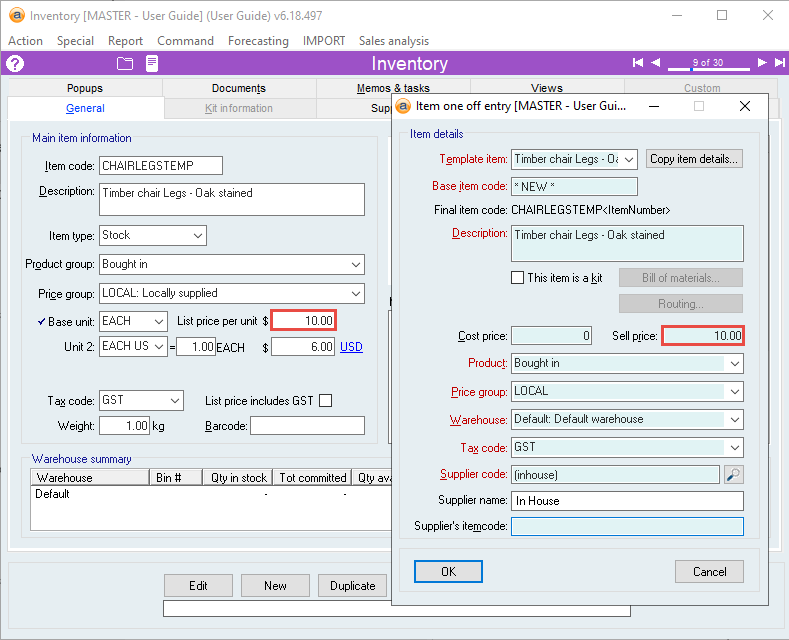
By default, when creating a one-off item, the Sell price is automatically set to the List price per unit value of its template.
Please see the Options that affect calculation of sell price for one-off items for more information about when this might not be the case.
Sell price based on Bill of materials
If a one-off item is a kit, then the sell price can be set to automatically calculate based on its Bill of materials.
After modifying a one-off item’s Bill of materials (BOM), a pop-up window will appear asking "Would you like the Cost price and Sell price to be recalculated for this One off item?"
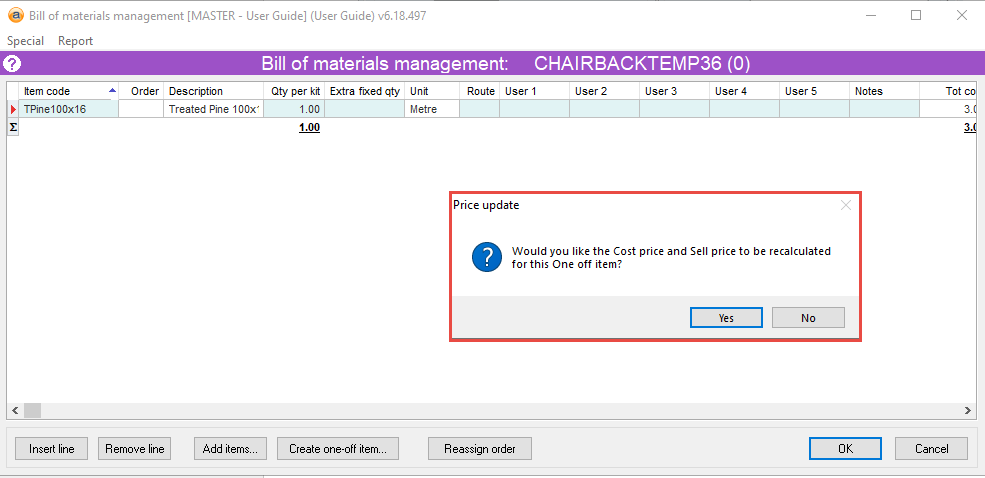
If you select Yes, the sell price of the one-off item will change to the total price of all items listed in the BOM.
If you select No, the sell price will remain the same.
Sell price set manually
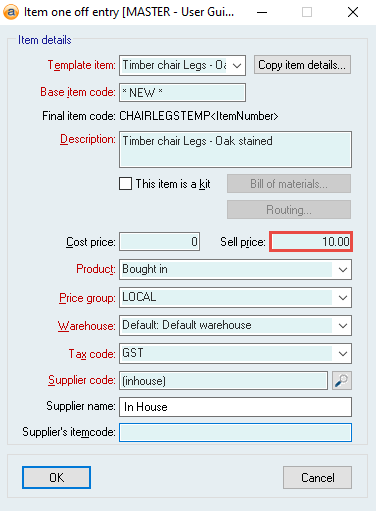
If you want your one-off item to have a different sell price than its template, and not automatically calculated based on its BOM, you can change the Sell price value in the Item one-off entry form during creation or edit the one-off item’s List price per unit after creation.
Options that affect calculation of sell price for one-off items
Don’t prompt to recalculate One-off item prices after BOM change
This option is found by navigating to System > Preferences > Inventory.
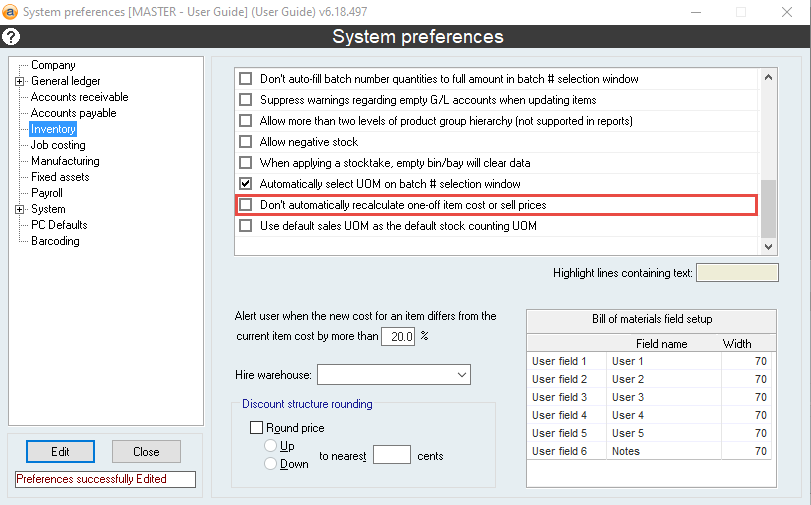
- If ticked, it prevents the Would you like the Cost price and Sell price to be recalculated for this One off item? pop-up from appearing and automatically selects No.
- If unticked, the pop-up will appear as normal.
This is useful to avoid Yes being accidentally selected and the sell price recalculating unnecessarily.
Auto-calculate sell price for template-based one-off items
This option is found by navigating to System > Preferences > Accounts receivable.
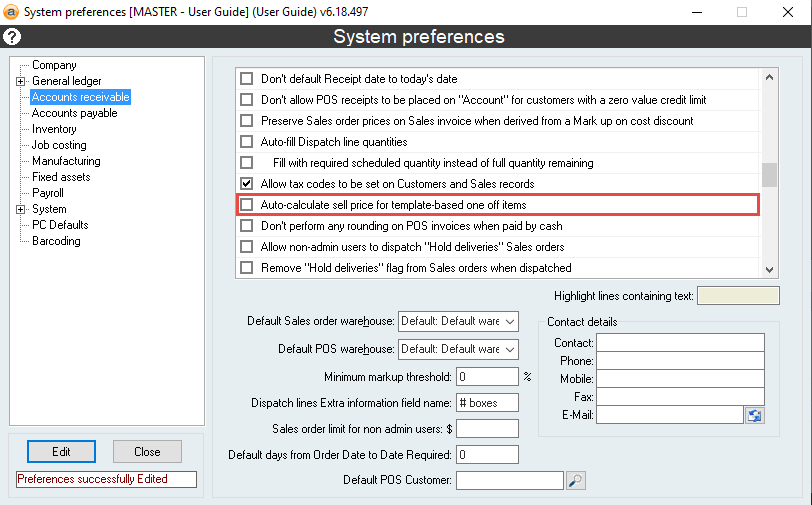
This option requires a customer code to be able to auto-calculate the sell price. This means that the one-off item must be created from a form that has customer details filled in (e.g. a Sales order form with the Customer code field entered).
- If ticked, the sell price of a one-off item is automatically set to the total price of all items listed in the BOM with discounts applied.
- Please note that because the sell price is the total price of the BOM, the sell price of non-kit items will be set to 0.00.
- If unticked or no customer code, the sell price is automatically set to the List price per unit value of its template.
Default one-off item’s List price to the template item’s List price
The option is found on one-off item templates by navigating to Setup > Options.
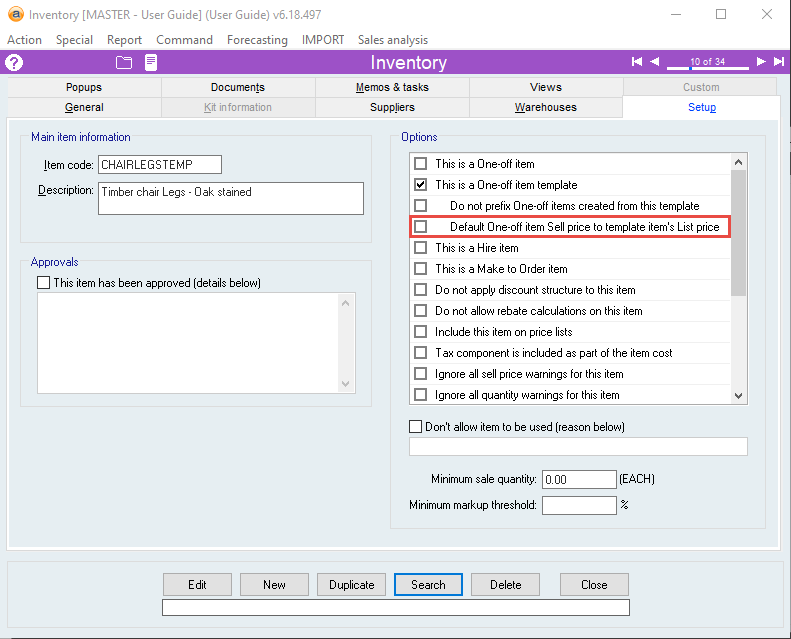
This option allows you to exclude one-off item templates (and any one-off items created from them) from automatically calculating if the Auto-calculate sell price for template-based one off items option is ticked.
- If ticked, the sell price of a one-off item created from a relevant template is automatically set to the List price per unit value of the template.
- If unticked, the sell price of a one-off item is affected by the Auto-calculate sell price for template-based one-off items option.
Additional notes
- The Would you like the Cost price and Sell price to be recalculated for this One off item? pop-up only appears for one-off items. It does not appear when modifying the BOM for one-off item templates, or other kit items.
- When auto-calculating the sell price of a one-off item, the customer details are only passed once. This means that if you are creating a one-off item from the Bill of materials form of a different one-off item, the second one-off item will be treated as if there is no customer code.
The Default one-off item’s List price to the template item’s List price option only applies to one-off item templates. If the item is not a template it will be greyed out and not modifiable.
Did you find this article helpful?
If this article is missing information, ambiguous or didn’t give you clear instructions, let us know and we will make it better! Please email us and quote the KB# in the top right of this article to let us know why it didn’t help you out and we will point you in the direction of additional information.
Last edit: 14/08/2026