New task for user
The New task for user form is used to create a memo or task that is linked to a user record. It provides a way to keep a record of notes, actions or follow-ups relating to a particular user, such as details of processes that need to be performed, who entered it and who is responsible for it.
Memos and tasks entered on this form are recorded against the Users record they were created for.
 Features
- Information is under review for a new version and will be updated soon.
New task for user form
Module: User
Activation: Main > User > New task for user
Special actions available for users with Administrator permissions:
- With Memos/Tasks Administrator permissions for Users:
- Change the User ID of the Entered by field of memos/tasks.
Database rules:
- None
Field definitions
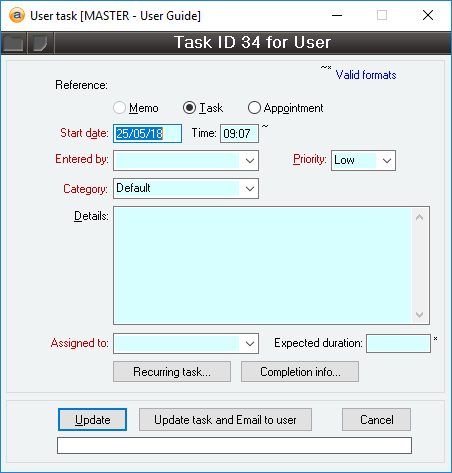
Reference
Reference: text, read-only , hyperlink
Shows the Users record that this memo/task will be linked to.
Clicking the hyperlinked text will open the Users form with the relevant user selected.
Last edit: 26/10/2026
Type
Reference: Select from list
Determines the type of record that is being created.
- Memo
- A date stamped static note providing information, a historical record, or log.
- Task
- An actionable workflow item that requires completion or follow-up.
- Appointment
- A scheduled time-slot tracking a specific event, or meeting.
Treated functionally the same as a task. The primary purpose of appointments is to distinguish scheduled events and bookings from to-do items.
If Memo is selected, the Assigned to, Expected duration, Recurring Task, Completion info, and Update task and Email to user fields are removed as they do not apply.
Last edit: 27/10/2026
Entered by
Reference: select from list, mandatory, HotEdit
The user who entered the memo/task.
Last edit: 27/10/2026
Priority
Reference: select from list, mandatory
The priority for the memo/task. Available priorities are Low, Medium, High, and Urgent.
Last edit: 27/10/2026
Category
Reference: select from list, mandatory, HotEdit
The category that the memo/task is assigned to.
Allows you to select from a list of categories specified in the Memo categories form.
Last edit: 27/10/2026
Details
Reference: memo, expandable
This field allows you to enter any details or notes relevant to the memo/task.
Last edit: 27/10/2026
Assigned to
Reference: select from list, mandatory, HotEdit
The user that the task is assigned to be actioned by.
This field only appears if the Type is set to Task or Appointment.
Last edit: 27/10/2026
Recurring Task
Reference: Button
This menu item allows you to set the task to recur at specified periods, such as if it represents a monthly recurring action or appointment.
Selecting this option will open the Recurring task form below and allows you to enter the following details.
This field only appears if the Type is set to Task or Appointment.
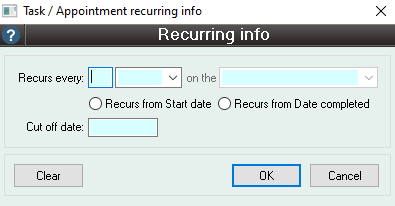
Recurs every...
Reference: Number, Select from list
This field allows you to specify how many of a predetermined unit you want the action to recur after. The quantity field can be filled with any number up to 3 digits long. The unit field allows you to choose one of:
- Day(s)
- Week(s)
- Month(s)
- Year(s)
Last edit: 27/10/2026
...on the...
Reference: Select from list
This field allows you to choose when in the given month the action will recur. This field is only available when Month(s) or Year(s) have been selected in the Recurs every... field. The options are:
- Day specified
- The new task will be created on the same day of the month as the current task, based on the Recurs from selection.
- First day of the month
- The new task will be created on the first day of the month.
- First weekday of the month
- The new task will be created on the first day of the month that isn't a Saturday or a Sunday.
- Last day of the month
- The new task will be created on the last day of the month.
- Last weekday of the month
- The new task will be created on the last weekday of the month that isn't a Saturday or a Sunday.
Last edit: 27/10/2026
Recurs from Start date
Reference: Yes/no
If this option is on, the date the task will recur is based on its Start date.
Last edit: 27/10/2026
Recurs from Date completed
Reference: Yes/no
If this option is on, the date the task will recur is based on the its Date completed.
Last edit: 27/10/2026
Cut off date
Reference: Date
This field allows you to specify when you would like the recurring action to cease.
Leaving the cut off date blank allows the task to recur indefinitely.
Last edit: 27/10/2026
Completion info
Reference: Button
This menu item allows you to set the task as completed.
Selecting this option will open the Completion info form below and allows you to enter the following details.
This field only appears if the Type is set to Task or Appointment.
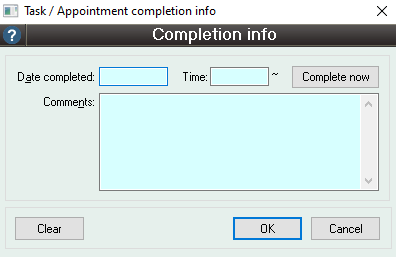
Date completed
Reference: Date
The date the task was completed.
The task is considered complete if any date is entered into this field, including dates in the future.
Last edit: 27/10/2026
Complete now
Reference: Button
Automatically fills the Date completed and Time to the current date and time.
Last edit: 27/10/2026
Comments
Reference: Memo, Expandable
This field allows you to enter any details or notes relevant to the completion of the task.
Last edit: 27/10/2026
Update task and Email to user
Reference: button
Updates the task and sends an email to the Assigned to user's Email address with the key details of the task.
If the user has no email address, you will be prompted to enter one manually.
This field only appears if the Type is set to Task or Appointment.
Last edit: 27/10/2026