Printers
The Printers form allows a default printer to be set for a combination of users or user groups and functions. This means that whenever a user wishes to print something for a particular function, this default printer will be used unless a different printer has been otherwise specified.
Default printers set here are only used if no other printer setting has been specified.
 Features
- Customisable printer usage for individuals or groups.
Printers form
Module: System
Category: Printers
Activation: Main > System > Printers
Form style: Multiple instance, SODA
Special actions available for users with Administrator permissions:
- Alter printers of other List of Users / Groups.
Database rules:
- None
Field definitions
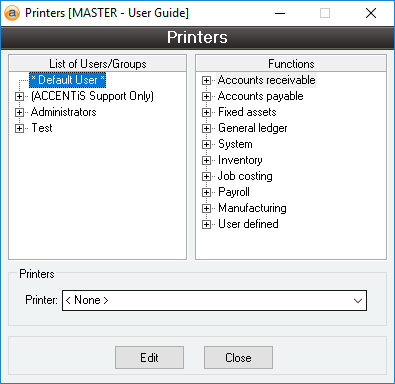
List of Users / Groups
This list shows all users and user groups that are currently defined in Accentis Enterprise, organised in two levels. The first level represents the User groups defined in Accentis Enterprise. The second level displays individual Users under their correct groups. Any user or user group that has printers assigned to it will appear red in the list.
When you are ready to modify a record, ensure that you have selected it in the list before clicking on the Edit or Delete button.
Functions
This list shows a two level representation of the functions and function groups available in Accentis Enterprise. Setting default printers can be achieved by either selecting a function from the second level of the list and choosing a printer for it, or by selecting a function group from the first level of the list and choosing a printer for it. If a printer is chosen for a function group, then the printer will be chosen for ALL functions within that function group.
Printer name
Reference: select from list or text(50), mandatory
This is a list of all printers that are currently installed on the current PC. This list could therefore appear different when viewed on two different PC’s. This should also be taken into consideration when assigning default printers. Since all available printers may not be installed on all PC's, it is possible to enter a printer name that does not exist in the list on the current PC.
Instead of the full printer name, you can use a wildcard * in the printer name. For example, “LABEL WHITE*”
This is useful when you have a range of printers in each department or location, and you want each location to use a printer that begins with a certain name. For example, say you have label printers that print labels on 100x50 WHITE label.
If each department had their own printer for the same label stock, then each printer can be named starting with “LABEL WHITE”. e.g “LABEL WHITE - PROD”, “LABEL WHITE – ADMIN”
In Accentis, you then set the default printer for these labels to “LABEL WHITE*”, which will allow any user who has a printer that starts with this name to use it as the default printer for the selected report.
Last edit 1/02/23