What needs to happen when we change banks?
Quick Answer
- Create a new asset account, and enter it’s bank account details.
- Test an ABA file upload with your new bank.
- Have your reports checked for any hard-coded bank details that need to be updated.
- Once you are ready to begin using your new bank account, update the accounts linked to your General ledger > Accounts tab system preferences.
Overview
When an organisation changes banks, there are several areas within Accentis Enterprise that need to be reviewed and updated. While many of these changes can be prepared ahead of time, it's important to ensure the new account is configured correctly and that any processes, reports, and banking functions that rely on bank account information continue to operate as expected after the change.
Process
Create a new asset account in your general ledger
- From the Accounts form, create a new account to reflect your new bank account.
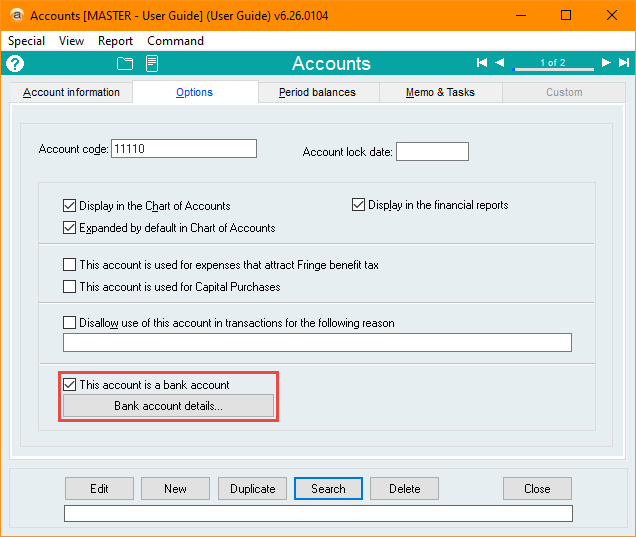
- On the Options tab, ensure This account is a bank account is ticked.
- Select Bank account details… and enter your bank account details and the APCA number.
- Your bank will provide these details.
Test an ABA file upload to you bank
- Create a sample payment and then test that the ABA file can be uploaded.
- Banks will have an option to load the ABA file without processing immediately.
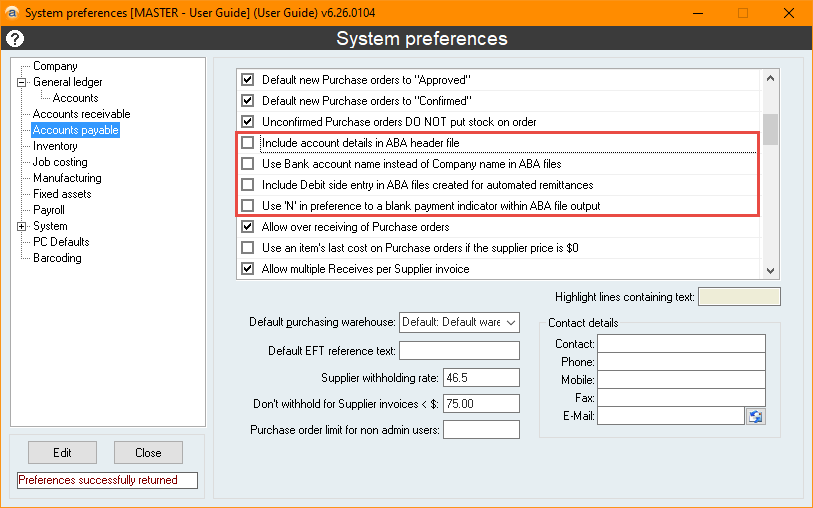
- If you see any error when loading the ABA file, one of the below system preferences will need to be changed. The error will usually point to the issue.
Check reports for hard-coded bank details
Most reports use the bank details of the Default bank account that you have set in your system preferences, but some have bank details written directly to them.
- Contact Accentis Support to check for any hard coded bank account details in your customised crystal reports.
- If necessary, request that new versions of these reports be created with updated details.
Change your accounts in system preferences
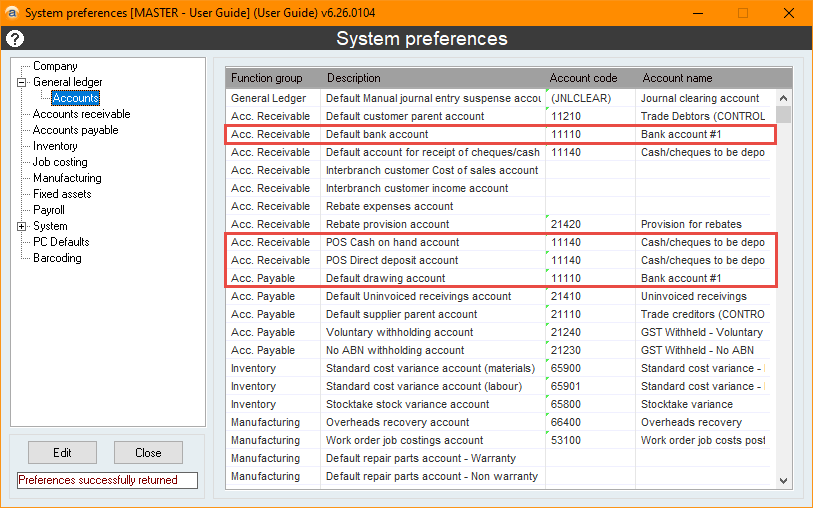
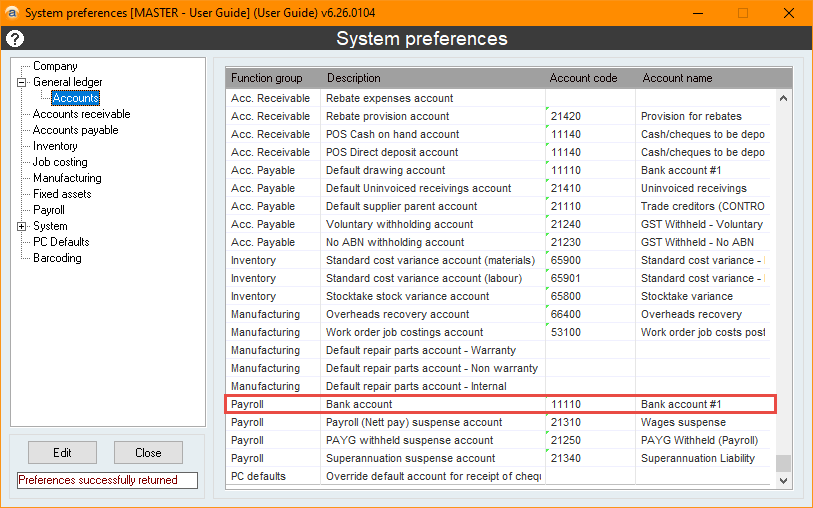
All the previous steps can be set up in advance, but the final step for when you change (or when you want to start generating paperwork with the new bank account) is to change the accounts linked to your General ledger > Accounts tab system preferences.
- Receivable > Default bank account
- Receivable > POS Cash on hand account
- Receivable > POS Direct deposit account
- Payable > Default drawing account
- Payroll > Bank account
Did you find this article helpful?
If this article is missing information, ambiguous or didn’t give you clear instructions, let us know and we will make it better! Please email us and quote the KB# in the top right of this article to let us know why it didn’t help you out and we will point you in the direction of additional information.
Last edit: 07/10/2026