Sales quotation, Sales order and Sales invoice line grouping
Line grouping allows you to assign a group number to each line of a quotation, order, or invoice and to associate related lines together for reporting. This applies to Sales quotations and Sales orders and is designed to allow reports to show data differently. It has no effect on transactions, values, quantities.
For example, if your process states that Group 1 is the main group, you could have a QuickList designed that filters to a certain line group.
 Setting it up
- Navigate to Accounts Receivable > Setup > Preferences and ensure Support line item grouping on Sales quotations and Sales orders is ticked.
- If Automatically assign line grouping when adding items to a Sales quotations or Sales order is ticked, then each new line will be assigned to the same group as the line above it.
- If not, then each new line will be assigned to G and considered to be unassigned.
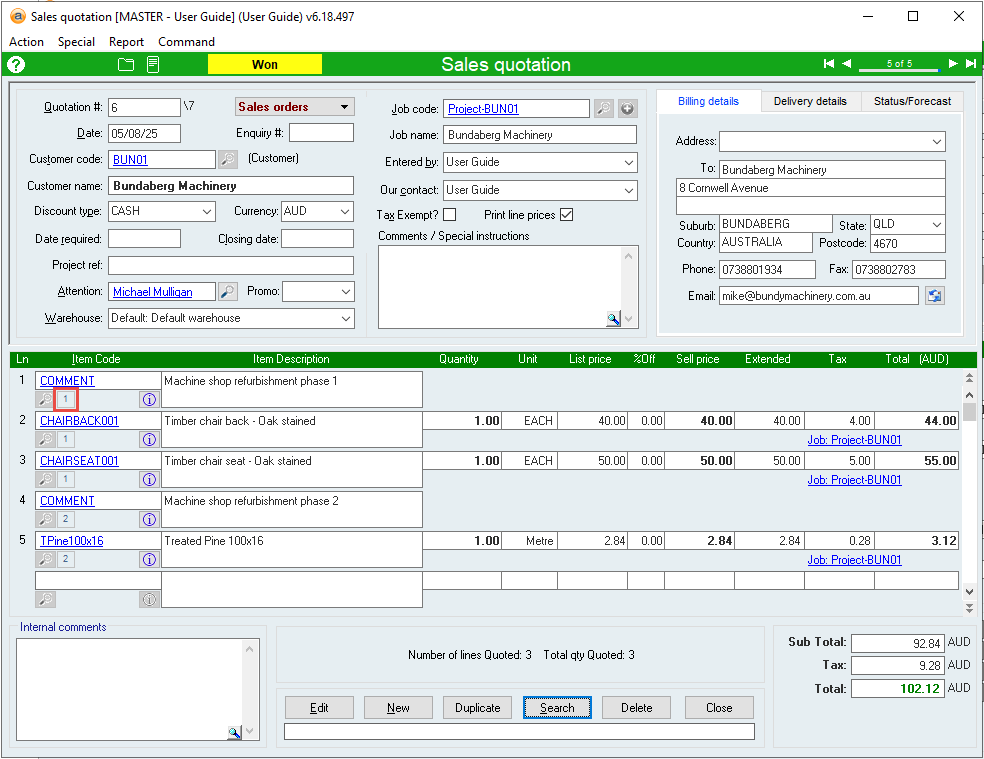
- When adding lines to a Sales quotation or Sales order, there will now be a new button below the Item code. This is the group number.
- To view and modify the line grouping for invoices, you must first select the Line details button This will allow you to modify the Group No field.
Assigning line groups
There are multiple ways to assign lines to groups.
- Selecting the group number for a line will assign it to the lowest unused group number.
- If a line is already assigned a group, selecting the group number will un-assign the line back to G.
- This also affects any lines in the same group that are below the line you are modifying.
- Leaving a blank line will automatically assign the following line to the next group level.
So, what does it all mean now that I have assigned groups?
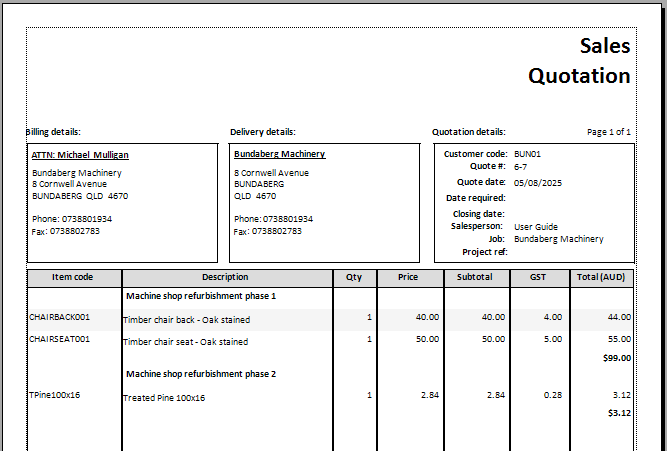
This means that Accentis Enterprise can tailor your quotes, orders, picking tickets, delivery dockets or sales invoices to format according to groups.
Here is an example of a sales quote that utilises line grouping to split the report:
Notes
- Having assigned groups will make it much easier to plan out your order and assign the correct groups from the start instead of shuffling everywhere.
- If you have many lines and need to do tricky group re-organisation, we can create a custom report that lets you see all lines at once in large view, multi-select and assign groups.
Q & A
- How many groups can I have? You can have as many groups as you have lines.
- Can these groups be out of order? Yes, if you select the group numbers out of order.
- Must all lines be assigned a group? No, you can leave some as G.
- What if they are out of order and I want them back in order? Just click the box after the one you want and un-assign, then go to the top and click the box. This will assign all lines not already assigned.
- Can I go back and change existing orders or quotes to have grouping? Yes, you can edit them and start assigning groups.