DATA validation error: No stock/expense account on Receive
Overview
When processing a Receive, you may receive the following error:
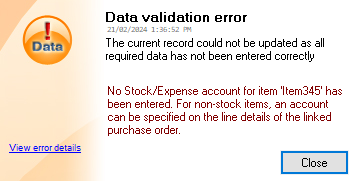
This means that the Receive cannot be processed, because the specified item does not have an allocated Stock / Expense account.
What causes the error?
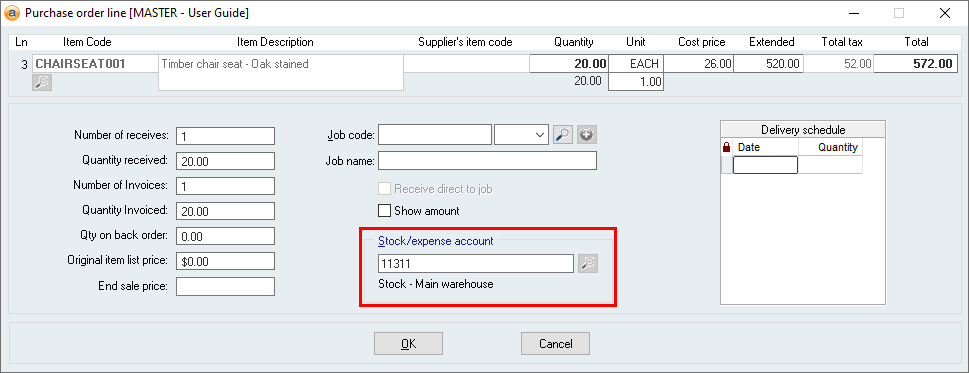
This error occurs when attempting to update a Receive and the General Ledger account for the Stock / Expense account of the item on the purchase order line has not been specified.
If you click on the (i) button under the item code on a purchase order:
This will show the Purchase order Line details, and you will see the account here:
This can happen:
- If an Item is added to the Purchase order but, at the time, it did not have a G/L account allocated to it for the selected warehouse,
- If the Stock/expenses G/L account for a line was removed while editing the Purchase Order, or
- If an account has been deleted.
When the Receive transaction is processed, it will look at the corresponding Purchase Order line to determine which G/L account to use for the transaction. If that account is invalid, does not exist, or has been locked for use (e.g., an account lock date or having the account set to “Disallow use”), then the Receive transaction cannot proceed.
How to fix the error
For a Receive to occur, all Items must be allocated to a Stock/Expense account.
 If the Item is non-stock
- Open and Edit the Purchase Order in question.
- Open the Purchase Order Line Details by clicking the (i) button under the Item code in question.
- Allocate the relevant Expense Account.
- Update the Purchase Order.
You will now be able to create a Receive for this Purchase Order.
If the Item is stock
- Open and Edit the Inventory record for the Item in question.
- Go to Warehouses tab > Accounts tab and enter a Stock account.
- Update the Inventory record.
- Open and edit the Purchase Order in question.
- Open the Purchase Order Line Details by clicking the (i) button under the Item code in question.
- Take note of the value of this line such as the quantity and price fields.
- These values will be reset when the Item code is re-entered.
- Re-enter the Item code, and check that the Stock account field is updated with the recent change.
- Re-enter the quantity, cost price, etc. for the line.
- Update the Purchase Order
You will now be able to create a Receive for this Purchase Order.
Did you find this article helpful?
If this article is missing information, ambiguous, or didn’t give you clear instructions, let us know and we will make it better! Please email us and quote the KB# in the top right of this article to let us know why it didn’t help you out and we will point you in the direction of additional information.
Last edit 28/02/24