How to account for outsourced labour costs on a Work order
Overview
If you hire external labour services (e.g. subcontractors), you will receive a supplier invoice for the worker’s hours.
When you manufacture goods or manage job costing, it is important that the labour costs for these contractors are recorded and included in your products that you build through a work order.
There are three main methods that you can use to account for the cost of your outsourced labour in your work orders:
- PURCHASE labour directly and allocate to the work order’s “extra costs” job
- INCLUDE a labour inventory code to the work order’s bill of materials.
- ENTER TIMESHEETS against a special “contractor” employee record
This document outlines these methods, how to use them, and how they interact with your accounts.
Purchase labour to the Work order’s extra costs job
If work order jobs are automatically created when you create new work orders, you can account for the cost of labour by linking a purchase order to the work order job.
How this affects transactions:
- When the purchase order is created, its cost is posted to the work order job’s Work in progress account (WIP).
- When the work order is finished, all costs that have been posted to the WIP account are credited from the WIP account and debited to the Stock / Expense account of the item being produced (increasing its value).
- When the item is dispatched and sold, those costs are then moved to the item’s Cost of sales account.
The advantage of this method is that all costs are automatically allocated to the linked job, and are thereby automatically included in the cost to produce the item.
The disadvantage is that there is no requirement for you to link the purchase order to the work order job. If the purchase order is not linked, the purchased labour will not be included in the cost to produce the item.
You can check if you are automatically creating work order jobs by viewing the Auto-created job prefix for Work orders system preference. If this field is entered, then work order jobs are being created.
Process
- From the Inventory form (Inventory > Inventory…), create a new non-stock item to represent the labour and set its Base unit to a unit that represents a labour costing unit (e.g. hours or minutes).
- From the Purchase order form (Accounts payable > Purchase order…), create a new purchase order and set the Job code to the work order job.
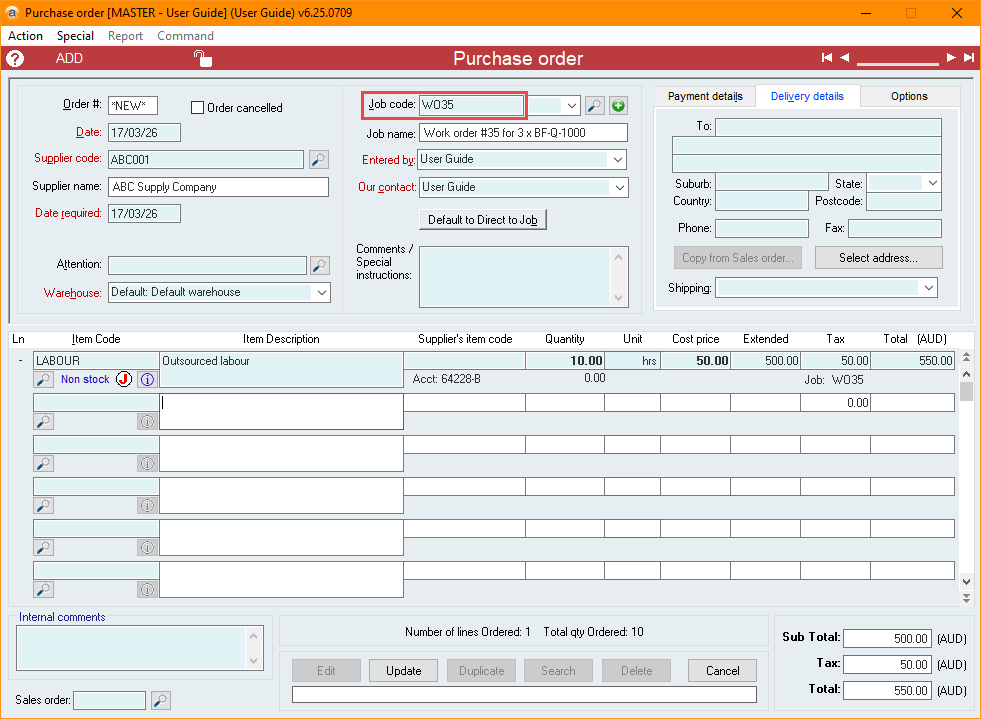
When using this method, you aren’t actually required to create a non-stock item to represent the labour. You can instead use .<account> notation to allocate the values directly to the account that would have been set as the Stock / Expense account. Creating a labour item is recommended as it prevents errors that are caused by mistyping or using incorrect account codes.
Include labour on the Bill of Materials
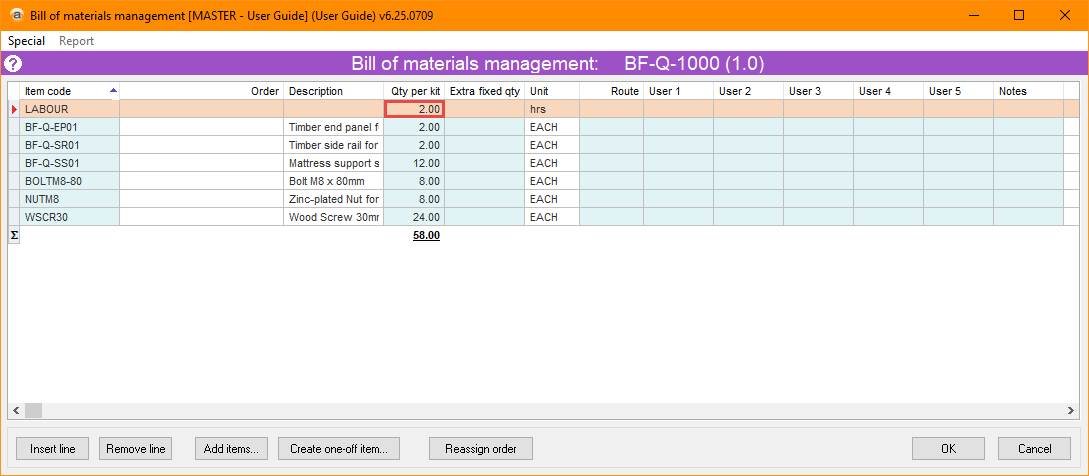
You can also account for the cost of labour by representing it as a non-stock item and including that item in the kit item’s bill of materials. You can set the standard cost of the labour item to the rate you are charged, then when creating a work order, you adjust the quantity based on the amount of labour required.
How this affects transactions:
- When the work order is started, the total value of the item (Std Cost ($) x Qty Per Kit + Extra Fixed Qty) is credited from its Stock / Expense account and debited to the work order’s WIP account.
- When the work order is finished, all costs that have been posted to the WIP account are credited from the WIP account and debited to the Stock / Expense account of the item being produced (increasing its value).
- When the item is dispatched and sold, those costs are then moved to the kit item’s Cost of Sales account.
This also means that you can create a non-stock item to represent labour, overheads, expenses, electricity, or any other recoverable item.
Process
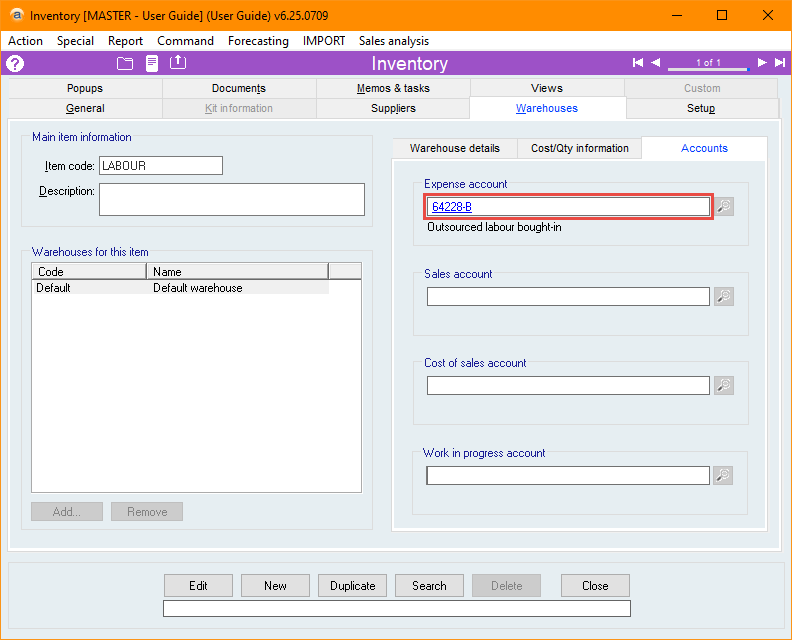
- From the Inventory form (Inventory > Inventory…), create a new non-stock item to represent the labour and set its Expense account to your recovery account.
- Set its Base unit to a unit that represents a labour costing unit (e.g. hours or minutes).
- Add this item to the bill of materials for your kit, and set the required amount of time as its Qty per kit.
Entering labour using timesheets
You can also set up your outsourced workers as Employees and add timesheet entries against the relevant work order. Instead of paying them through a pay run, your payments will be made against the supplier invoice for their labour.
When using this method, you will need to set up a Department for the outsourced workers and a non-stock item to represent their labour on invoices.
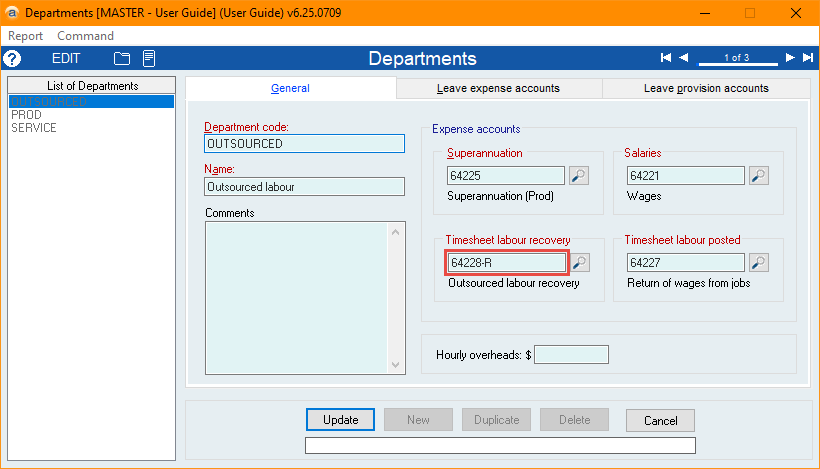
While they can be the same account, you may find it beneficial to have two separate labour expense accounts, one to represent the outsourced labour recovery (the department’s Timesheet labour recovery account), and the other to represent the outsourced labour bought-in (the Stock / Expense account of the labour non-stock item). The net of these accounts should reconcile to 0.
How this affects transactions:
- When the timesheet is submitted, the total cost of the labour (Job cost rate x Hours/Unit) for the relevant work order is credited from the employee department’s Timesheet labour recovery account (outsourced labour recovery account) and debited to the work order’s Work in progress account (WIP).
- When a supplier invoice is created for the outsourced labour, the supplier’s Account code is credited the value of the labour, and the labour item’s Stock / Expense account is debited the value of the labour.
- When the work order is finished, all costs that have been posted to the WIP account are credited from the WIP account and debited to the Stock / Expense account of the item being produced (increasing its value).
- When the item is dispatched and sold, those costs are then posted from the Stock / Expense account to the kit item’s Cost of sales account.
Process
- From the Inventory form (Inventory > Inventory…), create a new non-stock item to represent the labour and set its Expense account to your outsourced labour bought-in account.
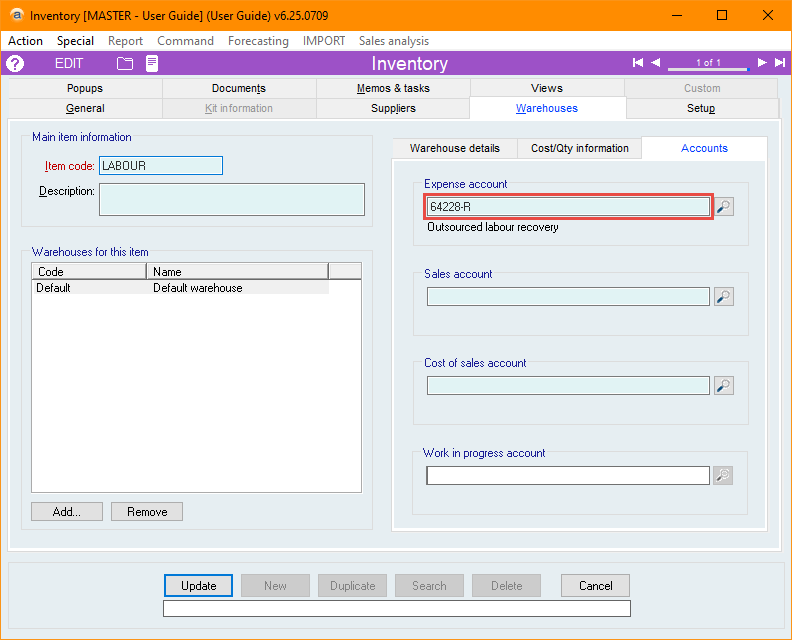
- From the Departments form (Payroll > Setup > Departments…), create a new department for the outsourced workers and set its Timesheet labour recovery account to your outsourced labour recovery account.
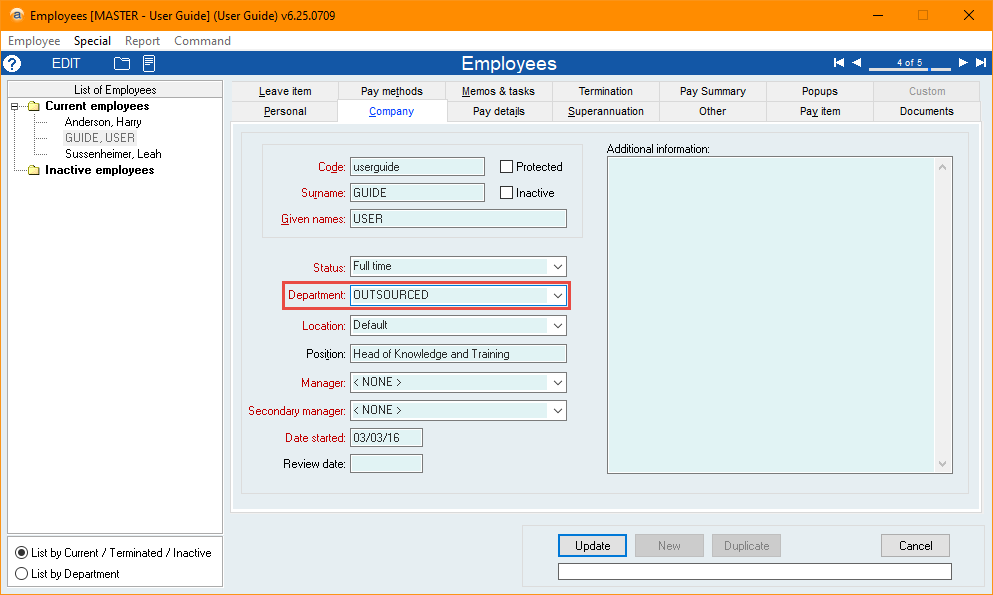
- From the Employees form (Payroll > Employees…), create new employee records for your outsourced workers and set their Department to your newly created outsourced department.
- Set their Job costing rate to the amount that the worker will invoice you per hour.
- Unless you are declaring the outsourced workers as contractors with superannuation obligations, tick the Don't report this employee through STP checkbox on the employee’s Pay details tab.
- When creating the outsourced employees, you are only required to enter details for the mandatory fields.
- Create timesheet entries for the employee, and associate them with the relevant work orders.
Did you find this article helpful?
If this article is missing information, ambiguous or didn’t give you clear instructions, let us know and we will make it better! Please email us and quote the KB# in the top right of this article to let us know why it didn’t help you out and we will point you in the direction of additional information.
Last edit: 02/04/2026